
How to Make a Search Console + Bing SEO Report
Connect Google Search Console and Bing Webmaster Tools to get one free SEO report of clicks, impressions, issues and wins, saved as PDF or Excel.
To make one SEO report from Google Search Console and Bing Webmaster Tools, open the Google & Bing Search Report, connect one or both accounts, pick your site, and press Generate live report. The tool compares the latest 28 days with the 28 days before and lists what needs fixing and what is doing well, with the rows behind each finding.
Steps
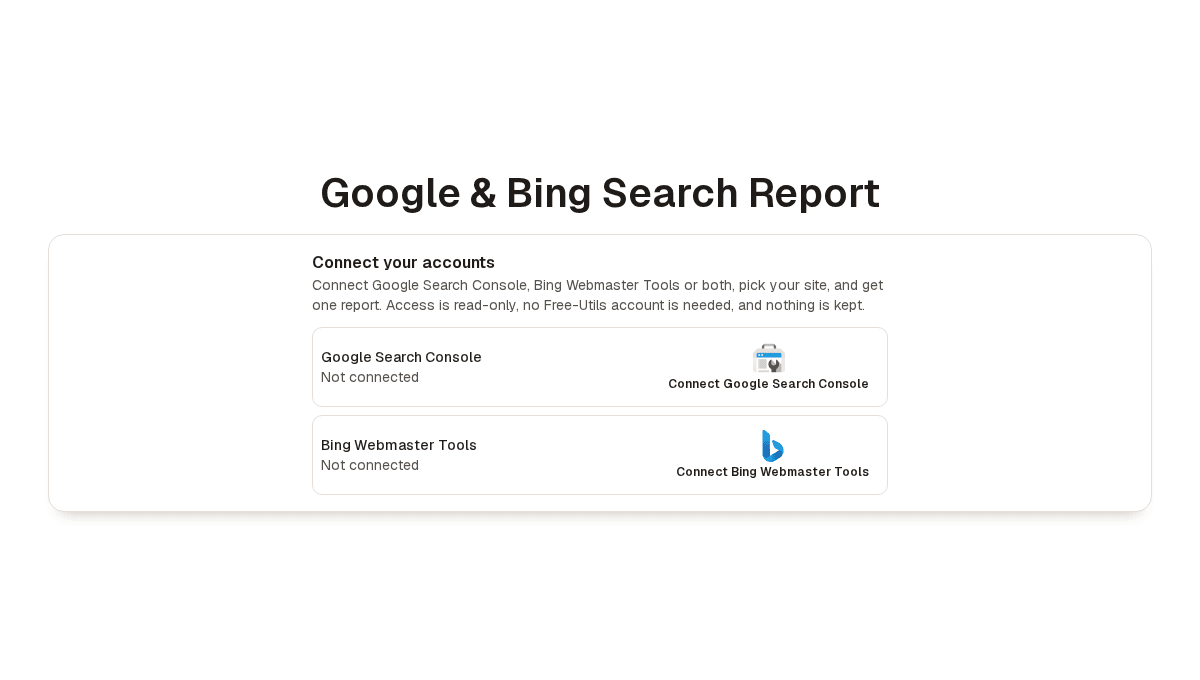
- Open the tool. Go to Search Report. Two cards appear: Connect Google Search Console and Connect Bing Webmaster Tools, each with its official logo.
- Connect an account. Press a card and sign in with the Google or Microsoft account that can view your site. Access is read-only. You can connect one engine or both.
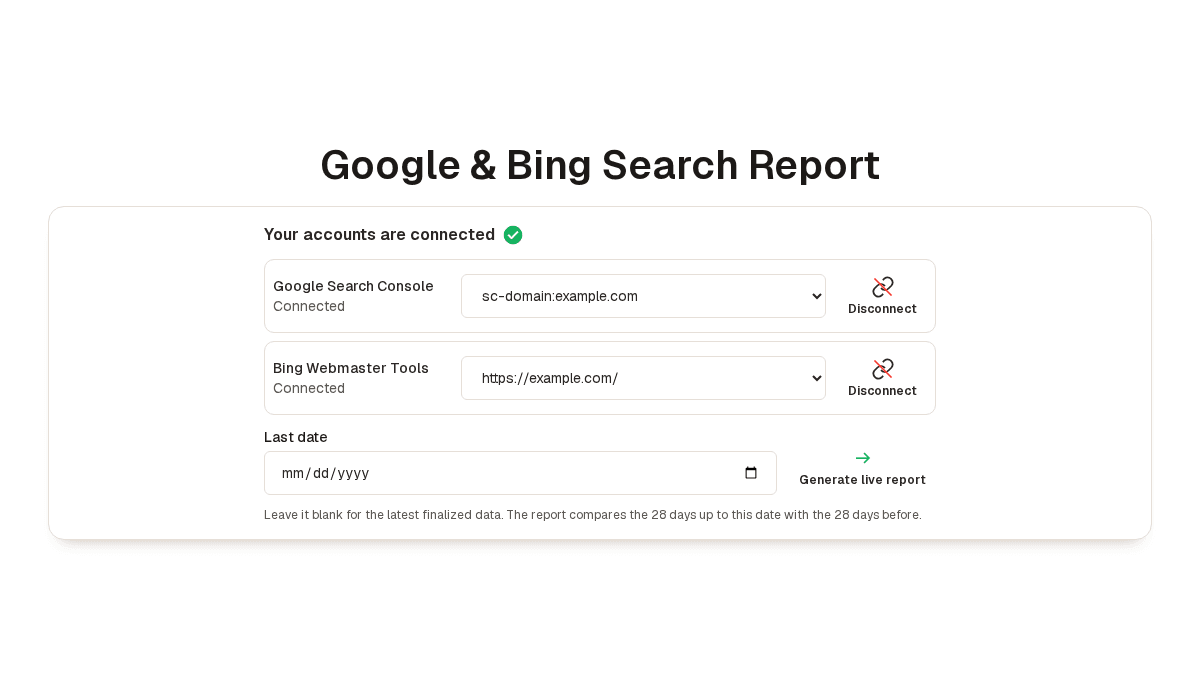
- Pick your site. Once an account is connected, its row shows a dropdown of your Search Console properties or verified Bing sites, next to a Disconnect button. Choose the same site in each.
- Choose a date range. Use a preset or enter a custom start and end date, then press Generate live report. The default is the latest 28 finalized days. Last 24 hours shows Google's hourly data, which may still change.
- Read and save the report. Open Show evidence under a finding to see its rows. Use Download for a PDF or an Excel workbook.
What the results mean
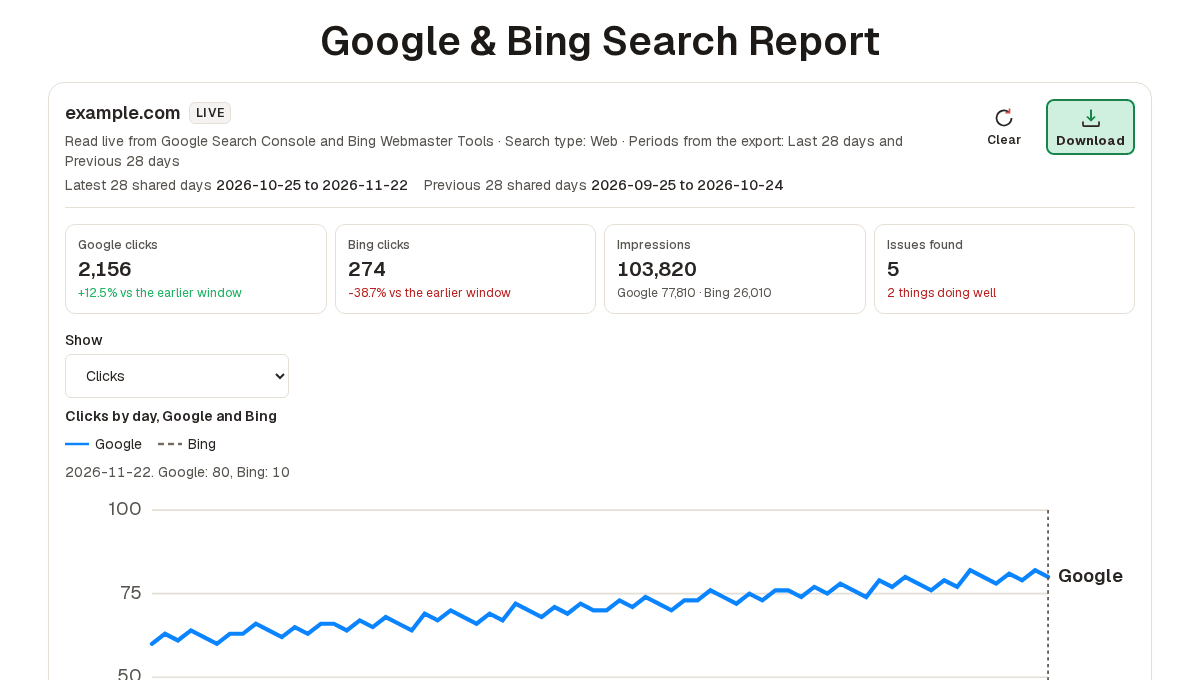
- Clicks are shown per engine, with the change against the earlier 28-day window. Impressions are shown as one total, with Google and Bing listed under it. Google and Bing are compared only over dates both engines returned.
- The daily chart draws both engines on one axis. A gap means an engine sent no data for that date.
- Needs fixing lists drops and errors, such as clicks that fell and stayed down, or a sitemap Google could not process. Each finding has a next step.
- Doing well lists pages that gained clicks or CTR, site-wide click growth on one or both engines, and sitemaps the engine processed.
- Average position is weighted by impressions, as Search Console reports it, and lower is better. CTR is total clicks divided by total impressions.
Questions
Do I need a Free-Utils account? No. You sign in only with Google or Microsoft, and the access is read-only.
Is my Search Console data stored? No. The read-only grant is encrypted into a cookie in your own browser for about an hour and is not saved in a database. The report is built in your browser.
Can I use only Bing or only Google? Yes. Connect one account and pick its site. The report covers the engine you connected.
Why was a check skipped? A check runs only when the data can support it. The report lists each skipped check and the reason under Checks run.
Related tools and guides
- Search Console keyword tracker: follow single queries day by day.
- Google index checker: see whether Google indexed a list of URLs.
- Backlink audit: load the links Bing lists for your site.
- 11 free SEO tools for Google Search Console and Bing: compare every web tool and pick the right one.
How to Save a Webpage as PDF on Any Device
Save any webpage as a PDF from Chrome, Edge, Firefox or Safari on a computer, Android phone or iPhone, with no app to install and nothing uploaded.
How to Run a Free Website SEO Audit
Crawl your site to find broken internal links, redirect chains, sitemap errors and noindex conflicts. Free, with no sign-up needed.