
11 free SEO tools for Google Search Console and Bing
Connect Search Console or Bing Webmaster Tools read-only, or just type a domain. What each free tool answers, what it needs and where its limits are.
Published November 27, 2026 · 12 min read
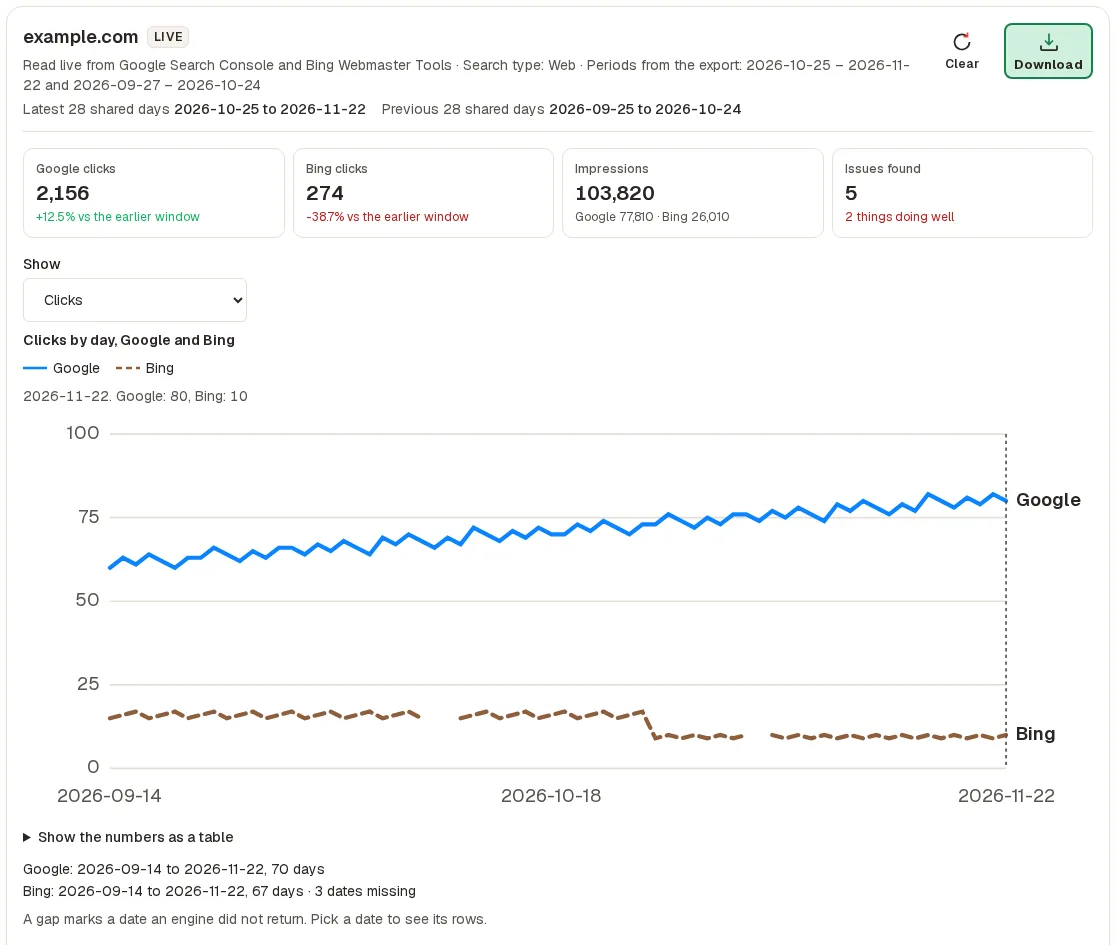
Free-Utils has 11 free SEO tools for site owners. Four of them connect to Google Search Console or Bing Webmaster Tools with a read-only sign-in: the Search Report (Google and Bing in one report, like the one above), the Backlink Audit (Bing links), the Keyword Tracker and the Google Index Checker. The other seven need only a domain or a page address: Website SEO Audit, DNS Lookup, Domain Age Checker, Meta Tag Checker, IndexNow Submitter, Website History and Page Speed Checker. None of them needs a Free-Utils account, and none costs anything.
The connected tools read the same data you see in Search Console and Bing Webmaster Tools, but they turn it into findings: what dropped, what is rising, which links are gone, which pages Google has not indexed. Below is what each tool answers, what it needs, and its limits.
The 11 free SEO tools at a glance
| Tool | What it answers | What it needs |
|---|---|---|
| Search Report | What improved and what needs fixing across Google and Bing | Search Console, Bing Webmaster Tools, or both |
| Backlink Audit | Which sites link to you, and whether those links still exist | Bing Webmaster Tools |
| Keyword Tracker | Which queries are rising and which lost clicks | Search Console |
| Google Index Checker | Whether Google indexed a URL, when it last crawled it, which canonical it chose | Search Console |
| Website SEO Audit | Broken internal links, redirects, sitemap and noindex problems | A domain |
| Meta Tag Checker | What a page's title, description, canonical, Open Graph and JSON-LD say | A page address |
| Page Speed Checker | Lighthouse scores and real-user Core Web Vitals | A page address |
| IndexNow Submitter | Tells Bing and other IndexNow engines about new or changed URLs | A domain and a key file |
| DNS Lookup | Every common DNS record, plus SPF, DMARC and DKIM checks | A domain |
| Domain Age Checker | When a domain was registered and when it expires | A domain |
| Website History | How long the Wayback Machine has archived a site, month by month | A domain or URL |
How the Search Console and Bing connections work
Each connected tool shows one card for each service it uses: Connect Google Search Console, Connect Bing Webmaster Tools, or both on the Search Report, each with its official logo. Pressing one opens Google's or Microsoft's own consent screen. Once you approve, the card reads Connected and a drop-down inside it lists your properties or verified sites.
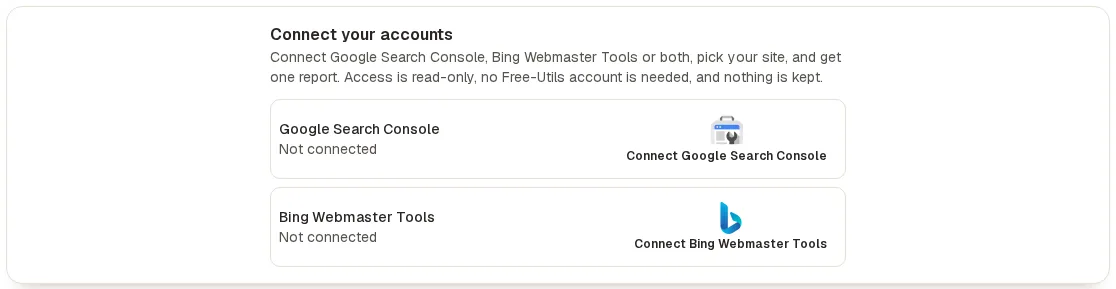 Each service has its own card. After you connect, your sites appear in a drop-down inside that card.
A few things are the same in every connected tool:
- Read-only. The tools ask for read access to your search data only. They cannot change settings, submit sitemaps or remove URLs.
- No Free-Utils account. You sign in with Google or Microsoft, not with us.
- Nothing kept. The grant sits in an encrypted cookie in your own browser for about an hour. No report is stored on a server. Disconnect on the card ends it sooner.
- Your sites only. You see the properties your Google or Microsoft account can already open.
1. Search Report: Google and Bing in one report
The Google & Bing Search Report is the place to start. Connect Search Console, Bing Webmaster Tools or both, pick a property for each, and press Generate live report. It compares the latest 28 days with the 28 days before, so a drop or a gain is measured against the same length of time. Leave the date blank for the latest finished data, or pick an earlier last date to look back.
The report shows clicks for each engine, total impressions and a daily chart with both engines on one axis, so a fall on Bing does not hide behind growth on Google. Under it, findings are split into Needs fixing and Doing well: clicks that dropped and stayed down, sitemaps Google could not fetch, pages that lost clicks, and pages where the click-through rate fell while the ranking held. Each problem comes with a next step, and every finding has a Show evidence link to the rows behind it. Save the whole report as PDF or Excel.
Use it for a monthly check or to answer "why did traffic drop?" in one place instead of two dashboards.
2. Backlink Audit: check the links Bing has found
The Backlink Audit connects to Bing Webmaster Tools only, because Google's Search Console API has no endpoint for links. (developers.google.com) Pick a verified site and press Load links. It reads the inbound links Bing lists for your 20 most-linked pages.
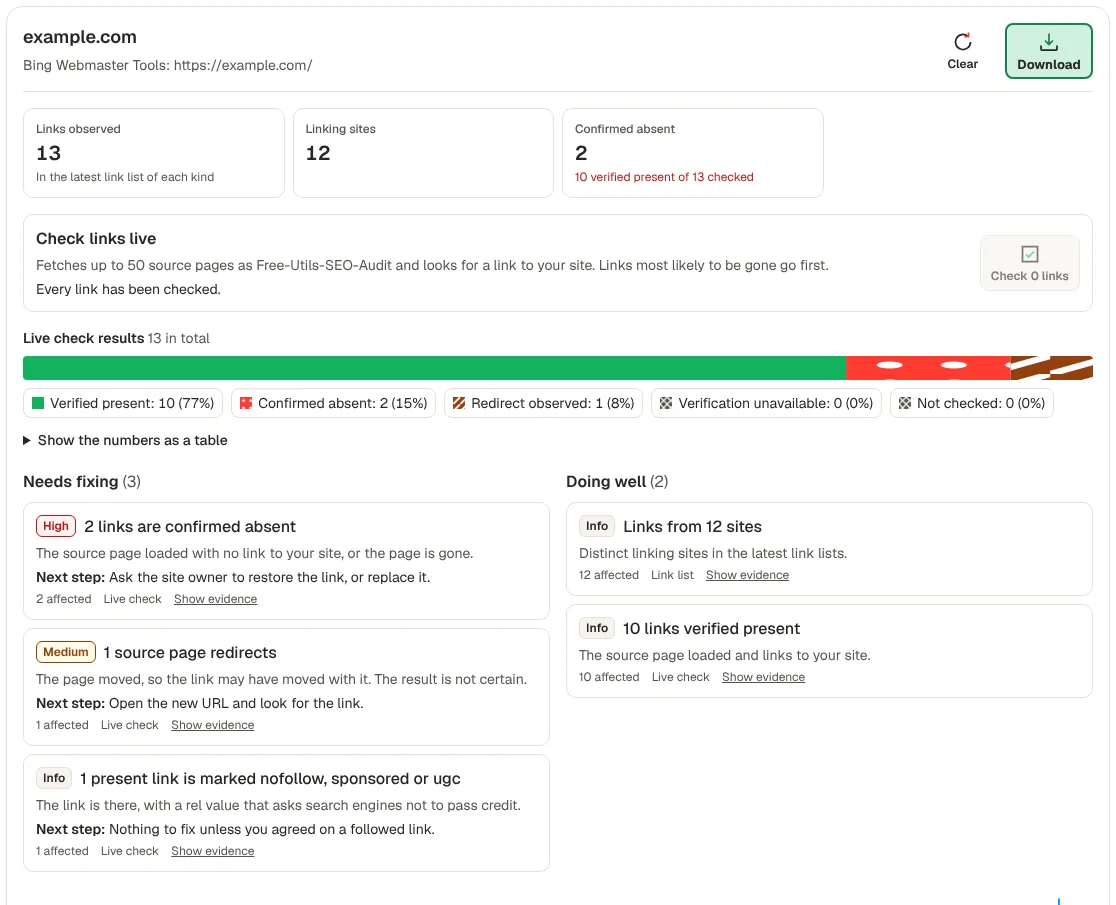 After a live check: 10 links still in place, 2 gone and 1 source page that moved.
Then press Check links live. Free-Utils fetches up to 50 source pages, respecting their robots.txt, and looks for a link to your site. Each link comes back as present, confirmed absent, redirected or unavailable, and links marked nofollow, sponsored or ugc are flagged. That tells you which lost links are worth asking a site owner to restore. Bing lists a sample of links, not every one, so a link missing from the list is not proof it was removed.
3. Keyword Tracker: rising queries and falling CTR
The Search Console Keyword Tracker connects to Google and loads the last 90 days of queries for the property you pick. It compares the latest window (28 days by default) with the one before and flags two things: queries whose click-through rate fell while the average position barely moved, and queries that are rising in impressions.
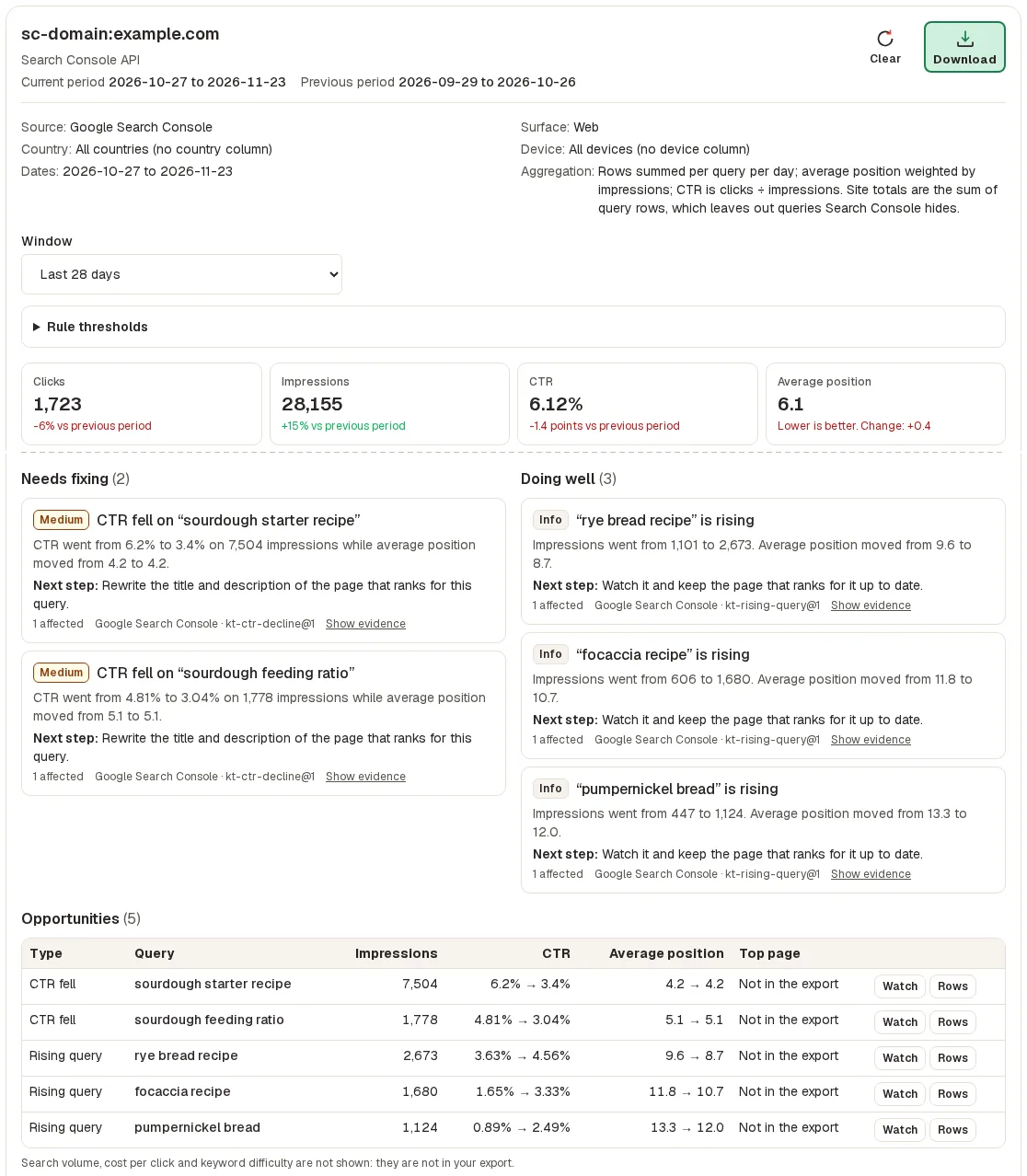 A CTR drop with a steady position usually means the snippet, not the ranking, needs work.
A CTR drop on a steady position is the cheapest fix in SEO: rewrite the title and description of the page that ranks. A rising query is a page worth updating before it peaks. Add queries to a watchlist (saved in your browser) to follow their position by day, open the rows behind any finding, and save PDF or Excel reports. Search Console does not report search volume or keyword difficulty, so the tracker does not show them either.
4. Google Index Checker: is this URL in Google?
The Google Index Checker uses Google's URL Inspection API, the same check as the URL Inspection tool in Search Console, but for up to 50 URLs at once. Paste URLs one per line, or load them from a sitemap; the panel also shows what Search Console reports for each submitted sitemap.
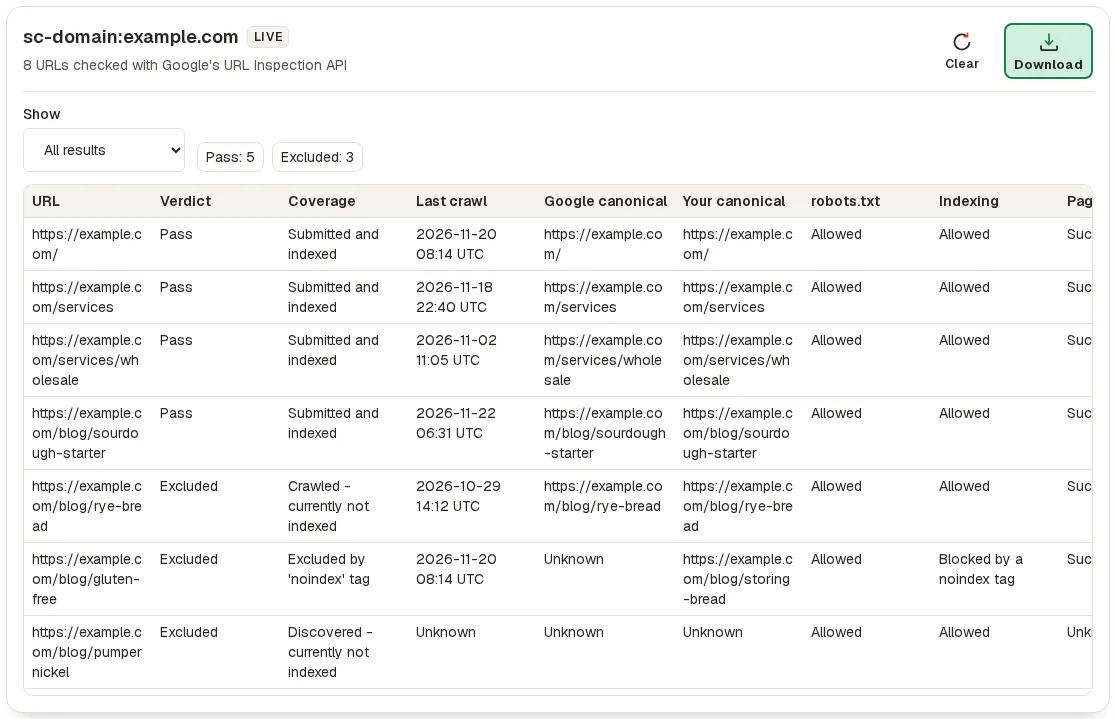 Five pages indexed and three excluded, each with Google's own coverage reason.
Each row shows Google's verdict, its coverage state in Google's words (such as "Crawled - currently not indexed"), the last crawl time, the canonical Google chose next to the one you declared, and the robots.txt and indexing state. Download the table as CSV or Excel. Google limits the URL Inspection API to 2,000 inspections a day for each property, so check the pages that matter rather than a whole site. (developers.google.com)
5. Website SEO Audit: crawl up to 100 pages
The Website SEO Audit needs only your address, plus a sitemap URL if it is not listed in robots.txt. It crawls up to 100 pages of source HTML, follows your robots.txt rules, and tests the URLs in your sitemap.
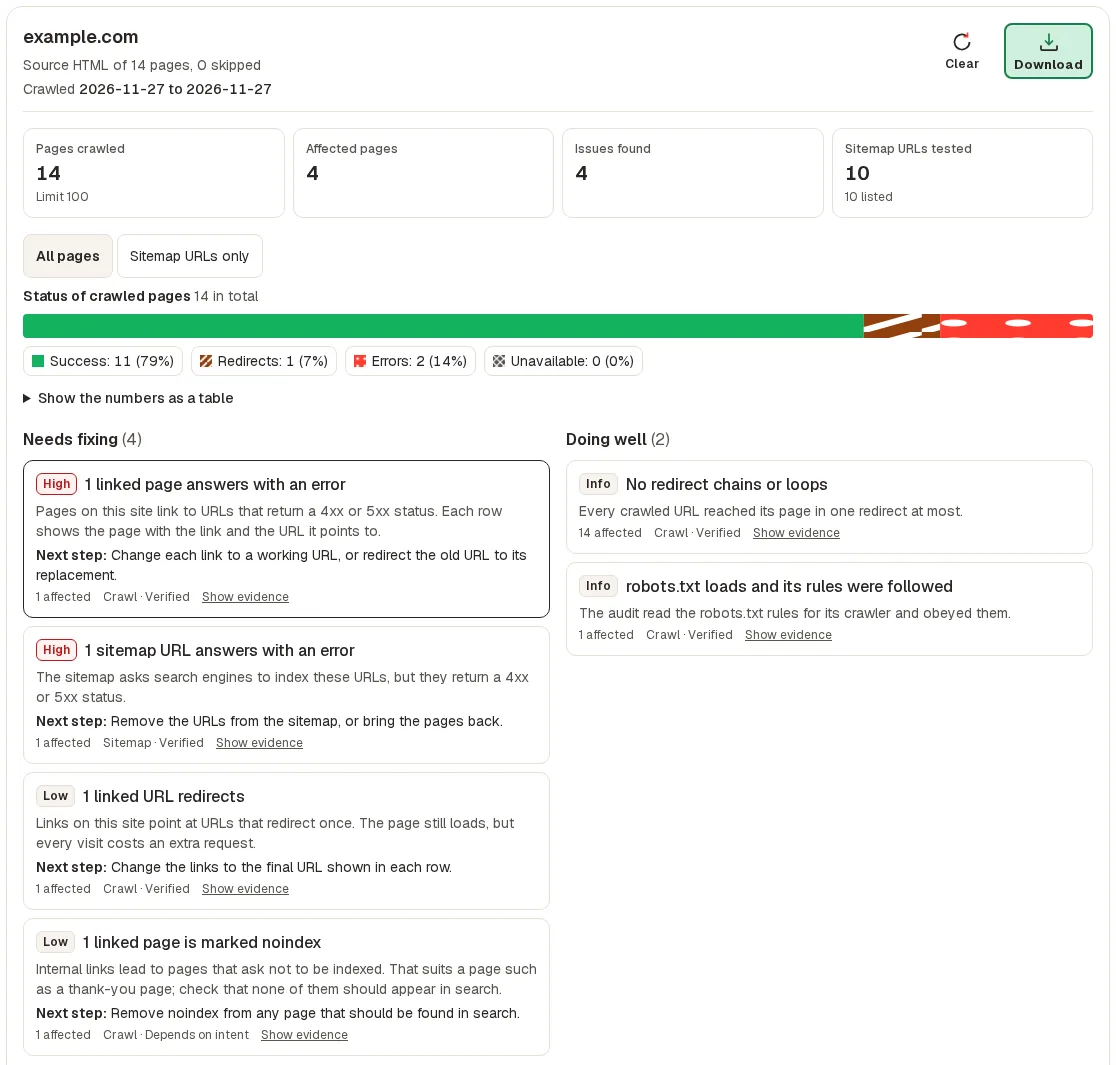 One broken internal link, one sitemap URL that errors, one internal redirect and one linked noindex page.
It reports broken internal links (with the page that links to them), redirect chains and loops, internal links that point at redirects, sitemap URLs that error, redirect, are blocked by robots.txt or are marked noindex, canonicals that point somewhere broken, and robots.txt problems. It reads source HTML and does not run JavaScript, so pages built entirely in the browser may look empty to it. It does not grade titles or descriptions; use the Meta Tag Checker for that.
6. Meta Tag Checker: preview your snippet and share cards
The Meta Tag Checker reads one public page (up to 2 MB of HTML, within 10 seconds and 5 redirects) and lists everything in its head: title and description with their lengths, canonical, robots, hreflang, Open Graph, X card tags, icons and each JSON-LD block with its types.
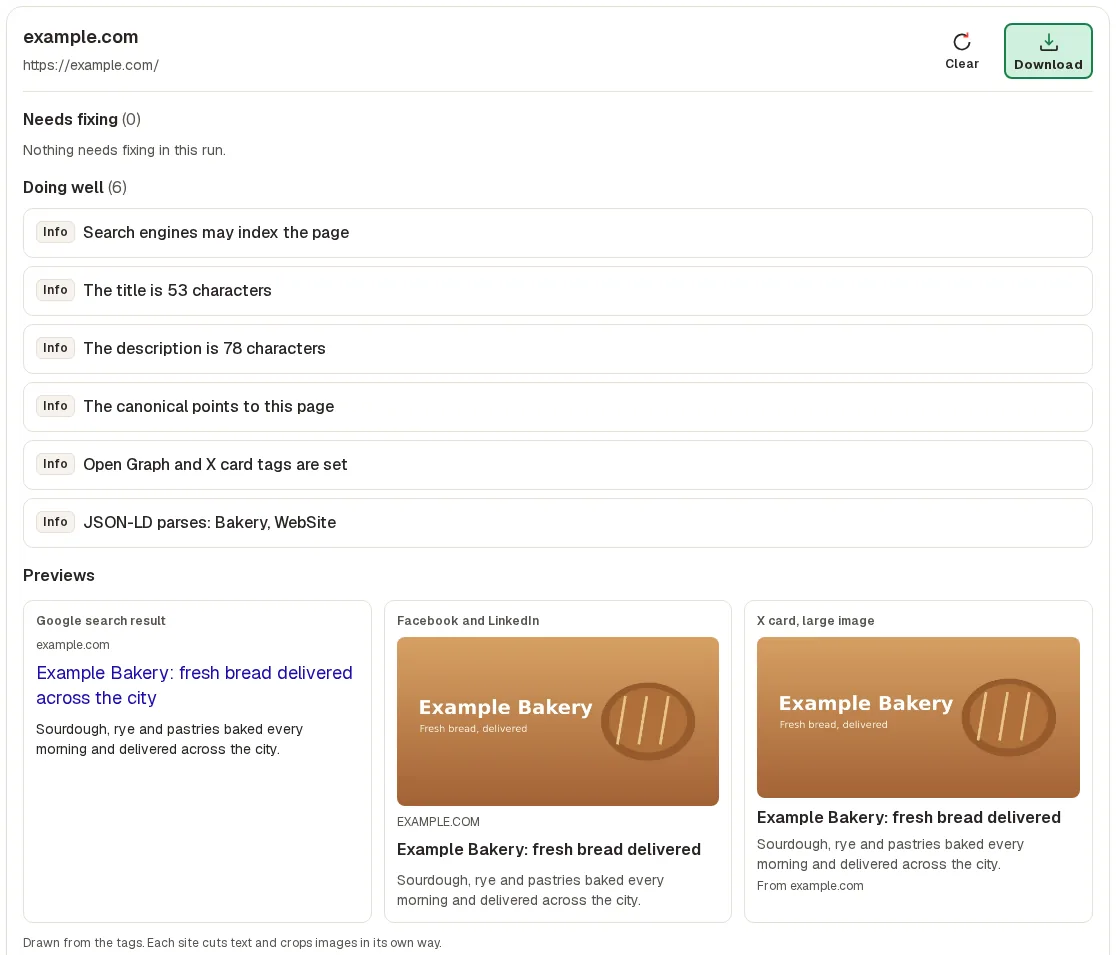 Previews show the Google result and the share cards the tags would produce.
It previews the page as a Google result and as Facebook, LinkedIn and X cards, and flags missing or duplicate tags, a canonical that points elsewhere, and JSON-LD that does not parse. Check a page after every template change and before you share it.
7. Page Speed Checker: Lighthouse and Core Web Vitals
The Page Speed Checker runs Google PageSpeed Insights on any public page, as Mobile or Desktop. A test takes 20 to 60 seconds because Lighthouse loads the page on Google's servers.
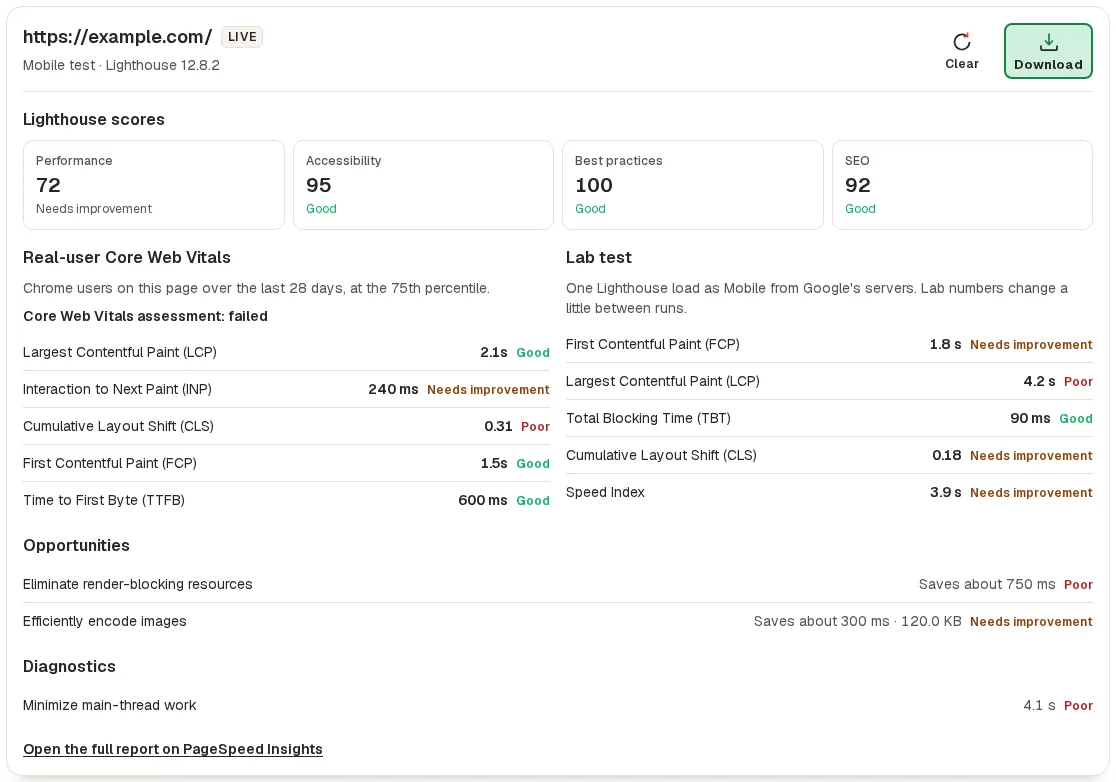 Real-user data on the left, one lab run on the right, and the fixes worth the most time below.
You get the four Lighthouse scores, real-user Core Web Vitals from Chrome users over the last 28 days when Google has enough data (LCP, INP, CLS, plus FCP and TTFB), the lab metrics, and the opportunities and diagnostics that cost the most time. The Core Web Vitals report in Search Console uses the real-user numbers, so fix a poor field LCP or CLS before chasing a perfect lab score.
8. IndexNow Submitter: tell Bing about new pages now
The IndexNow URL Submitter sends up to 1,000 URLs at a time to IndexNow, which shares them with Bing and the other search engines that take part. (indexnow.org) Press Make a key to create one on your device, upload the key file it shows to your site root, then add your URLs.
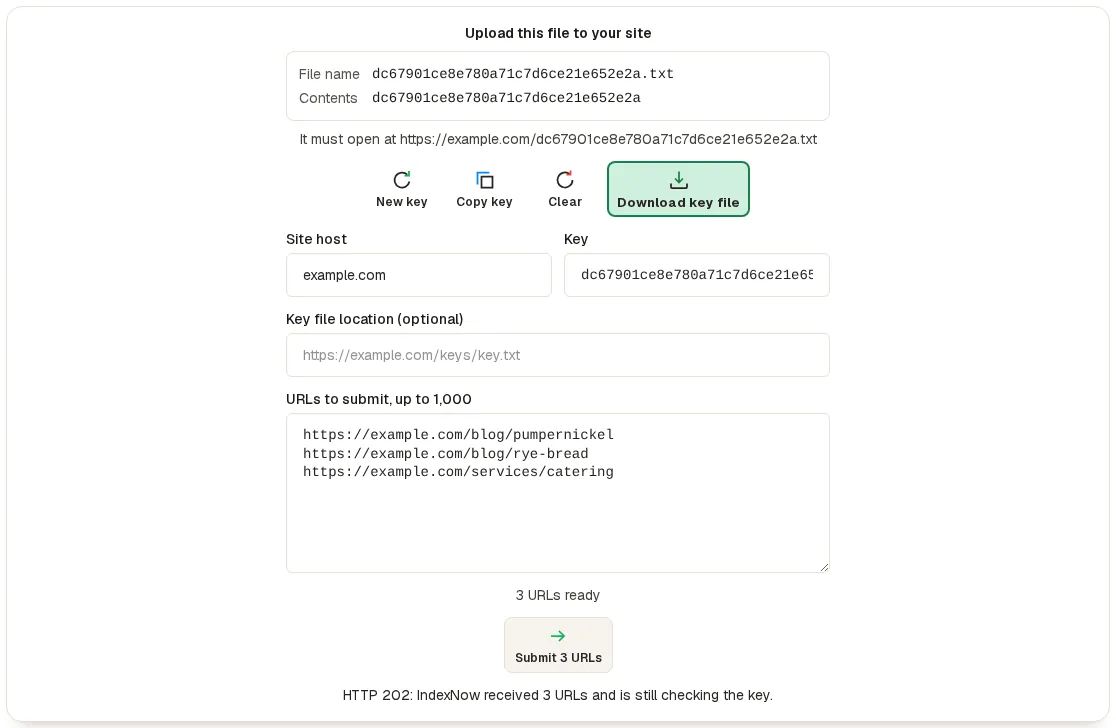 HTTP 202 means IndexNow received the URLs and is still checking the key.
Before submitting, Free-Utils fetches your key file and checks it holds exactly the key, then shows IndexNow's answer in plain words. Keys are never stored. Google does not use IndexNow, so keep your sitemap up to date for Google and check new pages with the Index Checker.
9. DNS Lookup: records plus email checks
The DNS Lookup reads A, AAAA, CNAME, MX, TXT, NS, SOA and CAA records over DNS-over-HTTPS straight from your browser (Cloudflare first, Google as backup), so nothing goes through our server. Add a DKIM selector to check that key too.
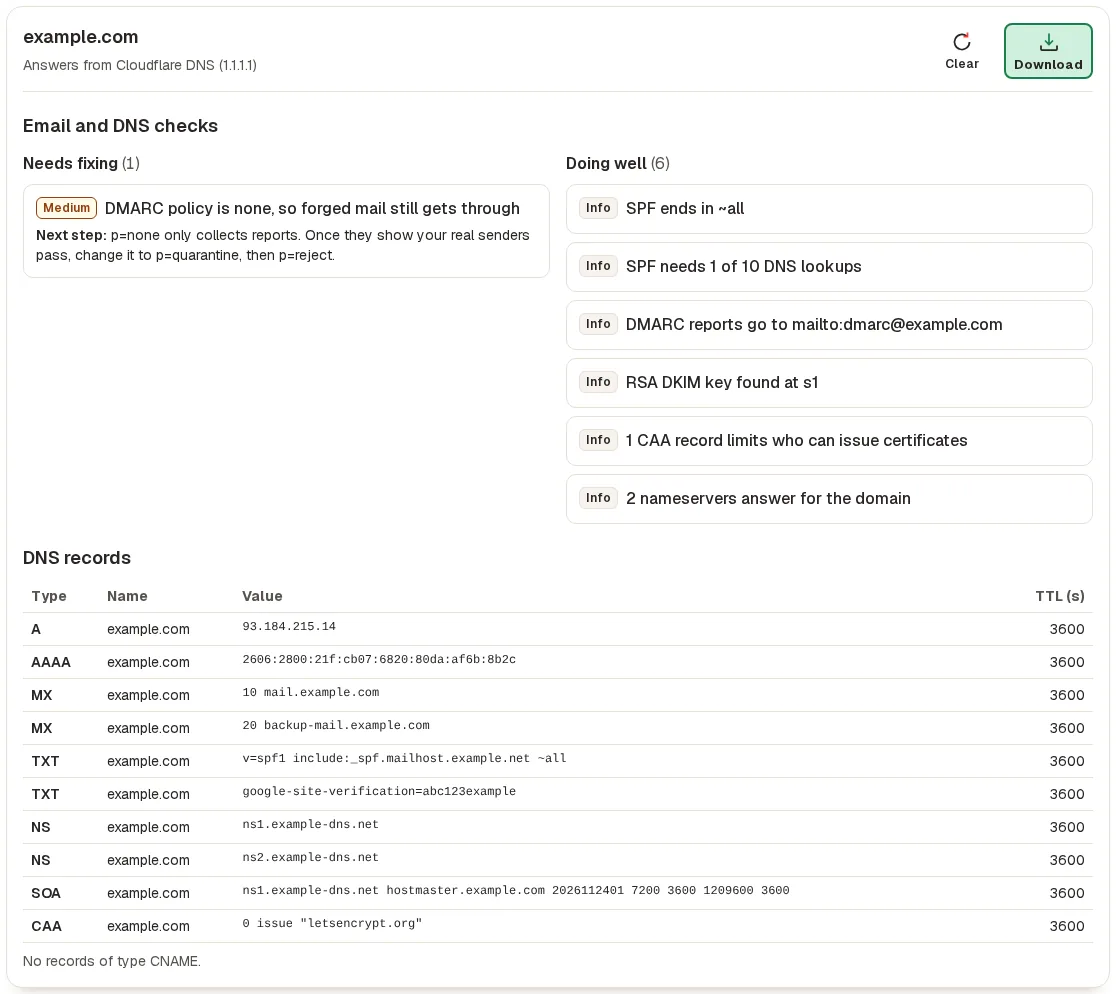 A DMARC policy of none only collects reports; the next step says what to change.
On top of the raw records it checks SPF (including how many of the 10 allowed DNS lookups it uses), DMARC policy and reports, DKIM key strength, CAA and nameservers. Use it after moving hosts or email providers, when a verification TXT record will not take, or when mail starts landing in spam.
10. Domain Age Checker: registration and expiry
The Domain Age Checker reads the domain's public RDAP record from the registry that holds it (IANA's list says which one). It shows the exact age, the registration, expiry and last-changed dates, the registrar, nameservers, DNSSEC and status codes.
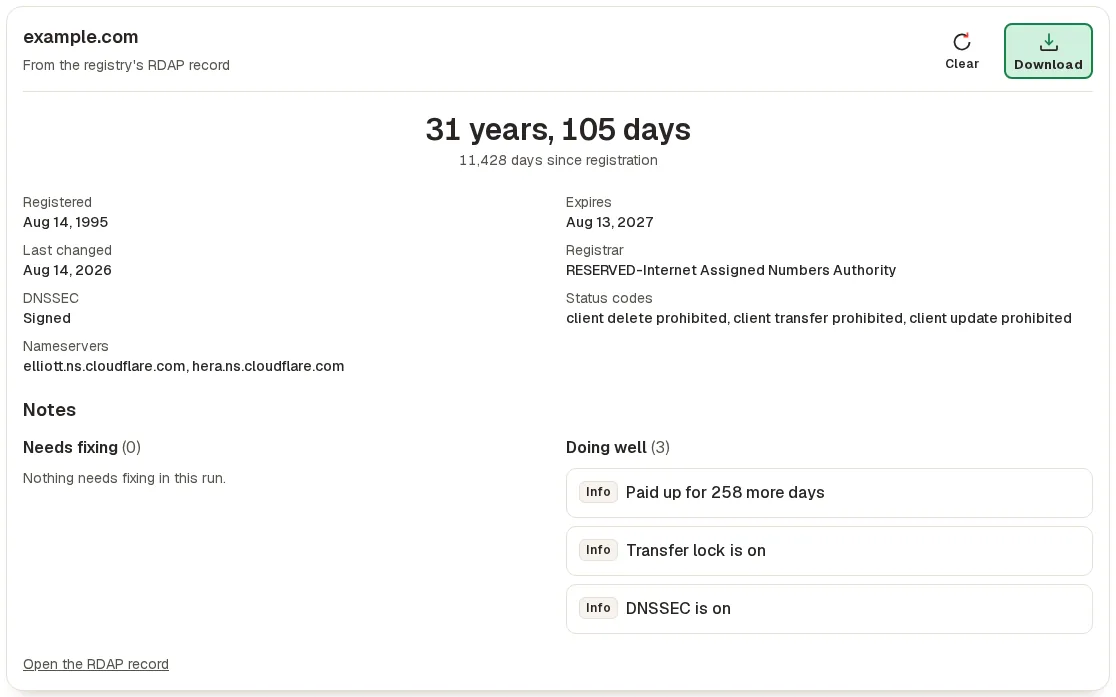 Age, expiry, registrar and DNSSEC from the registry's own record.
It also warns when a domain is close to expiry or has no transfer lock. Check it before buying an expired domain or when vetting a site that links to you.
11. Website History: what the Wayback Machine has
Website History looks up the Internet Archive's Wayback Machine captures of a domain or URL: the first and latest capture, how many months were archived, and a chart of archived months per year. Each month links to the page as it was. Results can be up to an hour old.
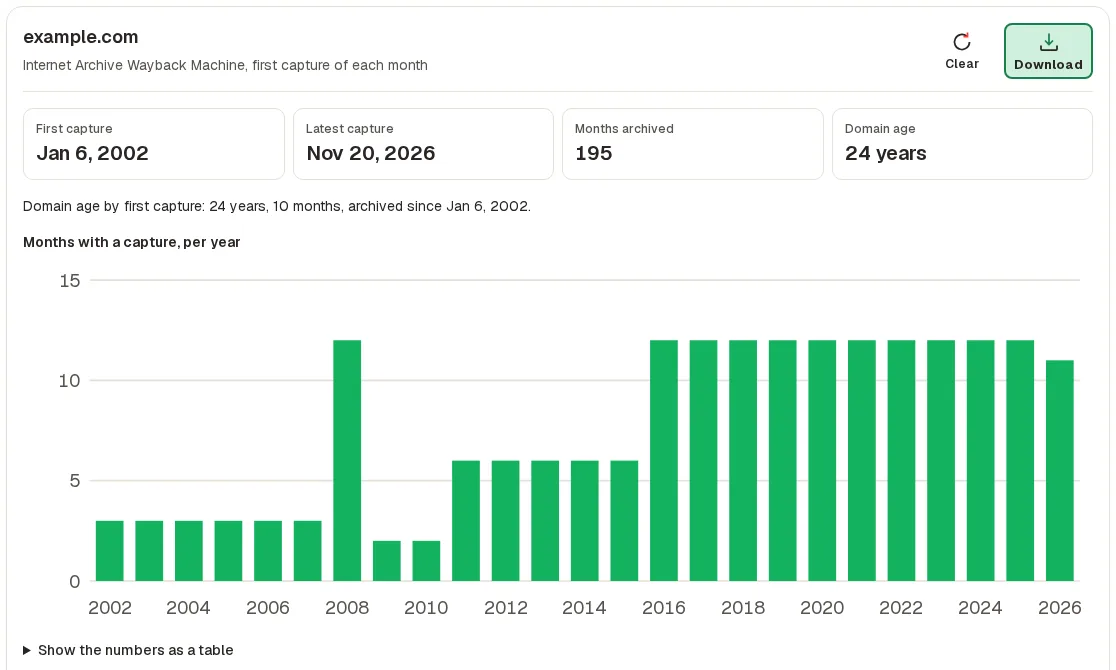 Gaps in the chart often mean the site was down, blocked the archive or changed hands.
Use it to see what a page said before a traffic drop, to check an expired domain's past before you buy it, or to recover old copy.
Which tool for which job?
- Traffic dropped: start with the Search Report to see which engine and which pages, then check those pages with the Index Checker and the Website SEO Audit.
- Clicks fell but rankings did not: open the Keyword Tracker, then fix the snippet with the Meta Tag Checker.
- New or updated pages: submit them with IndexNow for Bing, then confirm Google picked them up with the Index Checker.
- Lost links: run the Backlink Audit and a live check every few months.
- Slow pages or a poor Core Web Vitals report: the Page Speed Checker.
- Site migration or new host: DNS Lookup for the records, then the Website SEO Audit for redirects and broken links.
- Buying or vetting a domain: Domain Age Checker and Website History.
Frequently asked questions
Are these SEO tools really free?
Yes. All 11 are free to use, with no Free-Utils account and no trial. Fair-use limits keep them free: the URL Inspection API allows 2,000 checks a day for each property, and the server tools may ask for a quick bot check.
Is it safe to connect Google Search Console or Bing Webmaster Tools?
The connection is read-only and goes through Google's and Microsoft's own consent screens. The grant is kept in an encrypted cookie in your browser for about an hour, nothing is stored on a Free-Utils server, and Disconnect ends it at once. You can also remove access from your Google or Microsoft account settings.
Why does the Backlink Audit use Bing and not Google?
Google's Search Console API covers search performance, sitemaps and URL inspection, but not the Links report. (developers.google.com) Bing Webmaster Tools does share inbound links, so the audit reads those and checks them live.
Do I need both Google Search Console and Bing Webmaster Tools?
No. The Search Report works with either one or both. Bing Webmaster Tools can import your verified sites from Search Console, so adding Bing takes a few minutes if you have not set it up, and the Search Report can then compare both engines.
Can I check a site I do not own?
Yes, with the seven tools that take a domain or a page address. The four connected tools only show properties your own Google or Microsoft account can open.
Try it free: run a Google and Bing Search Report or audit your website. Neither needs a Free-Utils account.
How would you rate this content?