How to Convert Photos to PDF on Your Phone or Computer
Put one photo or a whole stack into one PDF for forms, email or WhatsApp, right in your browser. Watch the short video, then follow four illustrated steps.
Exam portals, college forms and offices often want one PDF, not a handful of camera photos. Photo to PDF turns each picture into a page, lets you fix the order and orientation, and saves one PDF on your device. The video shows the JPG to PDF page, which runs the same tool.
Steps
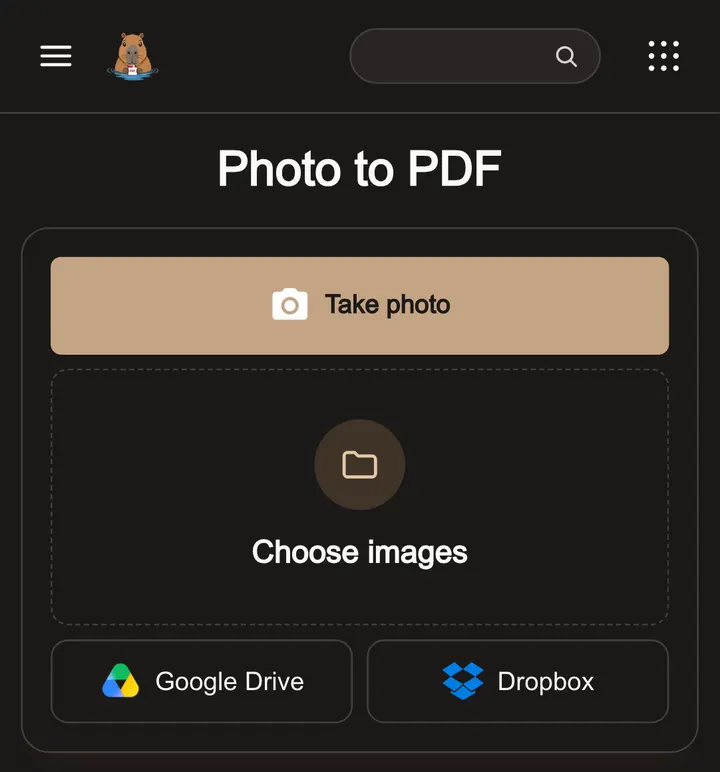
Step 1: Choose your photos
Open Photo to PDF and tap Choose images. Select every photo you want in the PDF; each one becomes a page. Take photo uses your camera instead.
Step 2: Put the pages in order
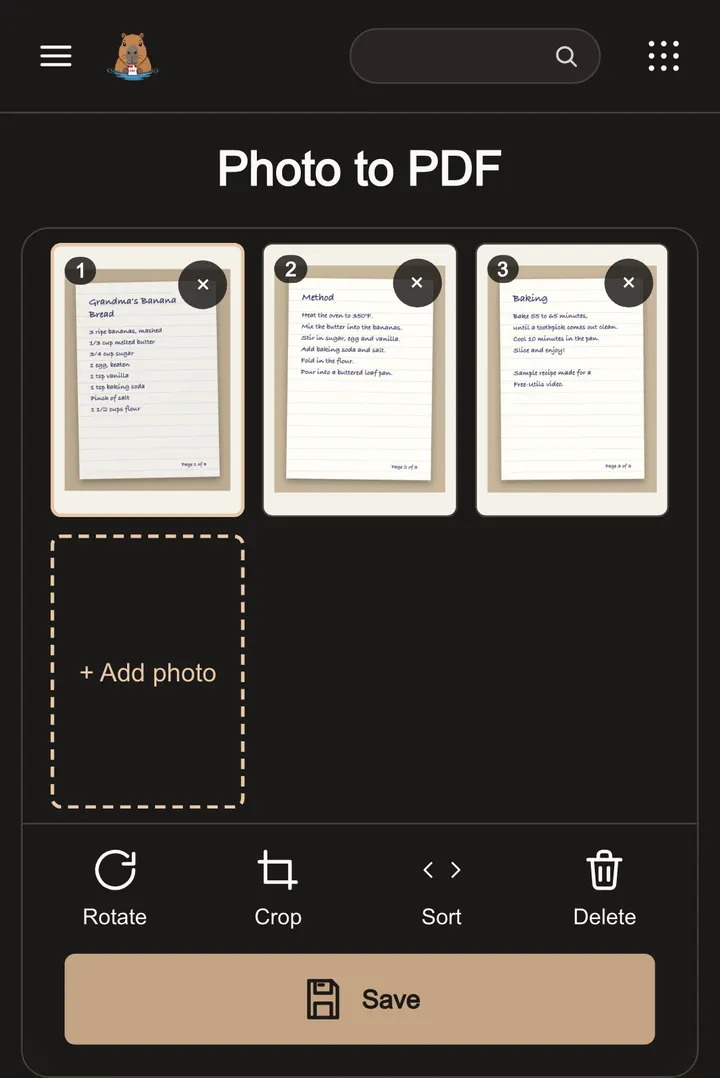
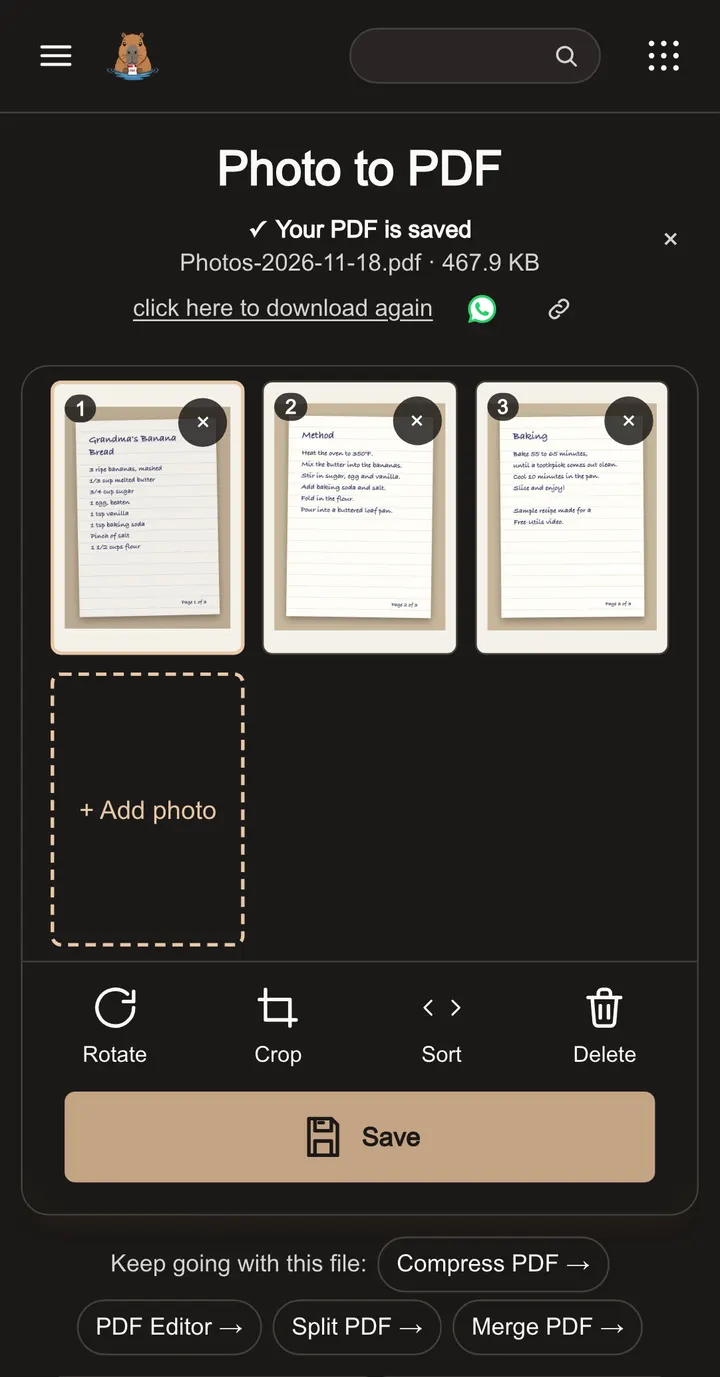
The photos appear as numbered pages. Select one and use Sort to move it, Rotate or Crop to fix it, or + Add photo to add more.
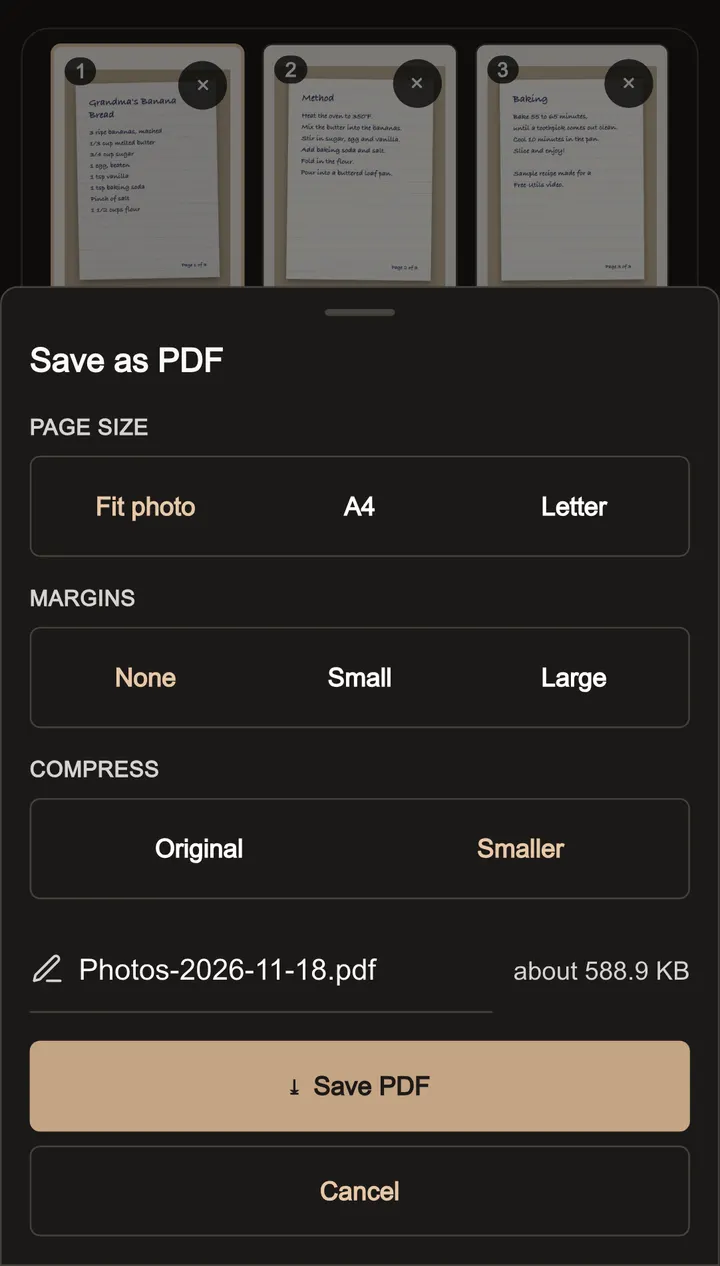
Step 3: Pick the page size
Tap Save. Choose Fit photo, A4 or Letter, the margins, and Original or Smaller. Smaller helps when a form caps uploads at a few hundred KB. Then tap Save PDF.
Step 4: Find your PDF
The PDF saves to your device. Here three photos became one 467.9 KB PDF. Keep going with this file sends it straight to Compress PDF, Merge PDF or the PDF editor.
Get a clean scan from a photo
- Shoot in daylight or under a bright lamp, straight above the page, so the text is even and sharp.
- Use Crop in step 2 to cut away the table and your fingers.
- Use Rotate for any page that came out sideways.
- Pick A4 or Letter when a form will print the PDF, and Fit photo when it only needs to be read on screen.
Make the PDF smaller
Camera photos are large, so a PDF of five pages can pass 5 MB. Choose Smaller in step 3 first. If a portal still rejects the file, open it in Compress PDF and pick a 200 KB or 100 KB target. To add the result to other documents, follow Merge PDF files.
Questions
Can I put several photos in one PDF?
Yes. Select them together or add more with + Add photo. Every photo becomes one page, in the order shown.
Which photo formats work?
JPG, JPEG, PNG, WebP, HEIC, HEIF and DNG, so iPhone photos work without converting them first.
How do I get the PDF under 200 KB?
Choose Smaller before you tap Save PDF. If it is still too big, open the PDF in Compress PDF and pick a 200 KB or 100 KB target.
Are my photos uploaded?
No. The PDF is built in your browser and the photos stay on your device.
Is there a size limit?
Each photo can be up to 100 MB on a computer or 50 MB on a phone. There is no daily limit and no watermark.
See the processing overview for how files stay in your browser.
Related guides
How to Convert HEIC to JPG on Your Phone or Computer
Turn an iPhone HEIC photo into a JPG any form, printer or app accepts, right in your browser. Watch the short video, then follow three illustrated steps.
Convert a video to MP4
Open a video, choose MP4, and save a playable copy. Learn when to convert, when to compress, and what to do if a browser cannot decode your source.