
How to Merge PDF Files on Your Phone or Computer
Join several PDFs into one file and put the pages in the order you want, right in your browser. Watch the short video, then follow three illustrated steps.
Application forms and offices often ask for a single PDF: a résumé, a certificate and a statement in one upload. Merge PDF opens every file you pick, lists each page so you can move or drop it, and saves one combined PDF on your device.
Steps
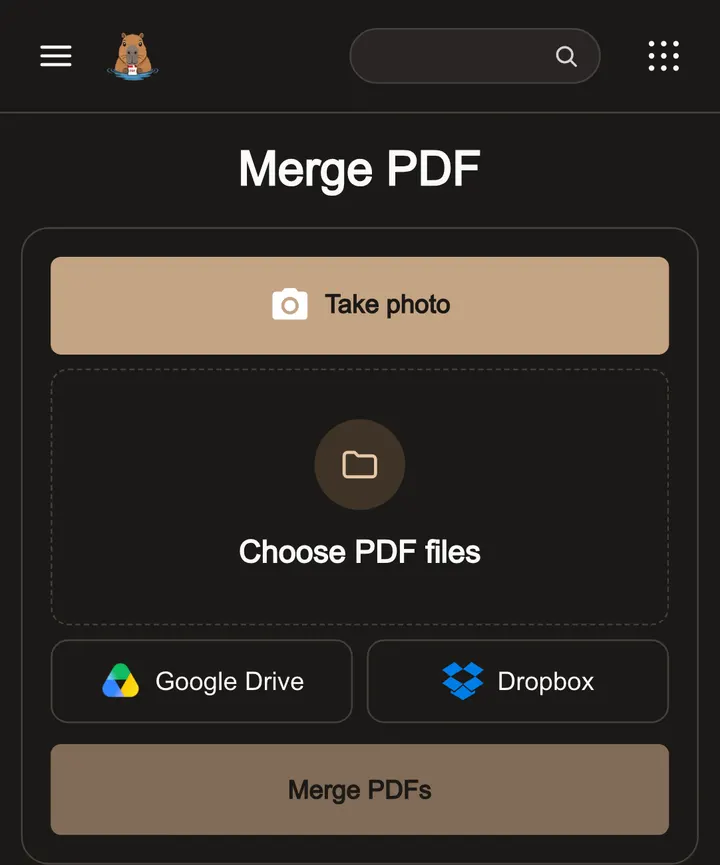
Step 1: Choose your PDFs
Open Merge PDF and tap Choose PDF files. Select every PDF you want to join. You can add more later with + Add PDF.
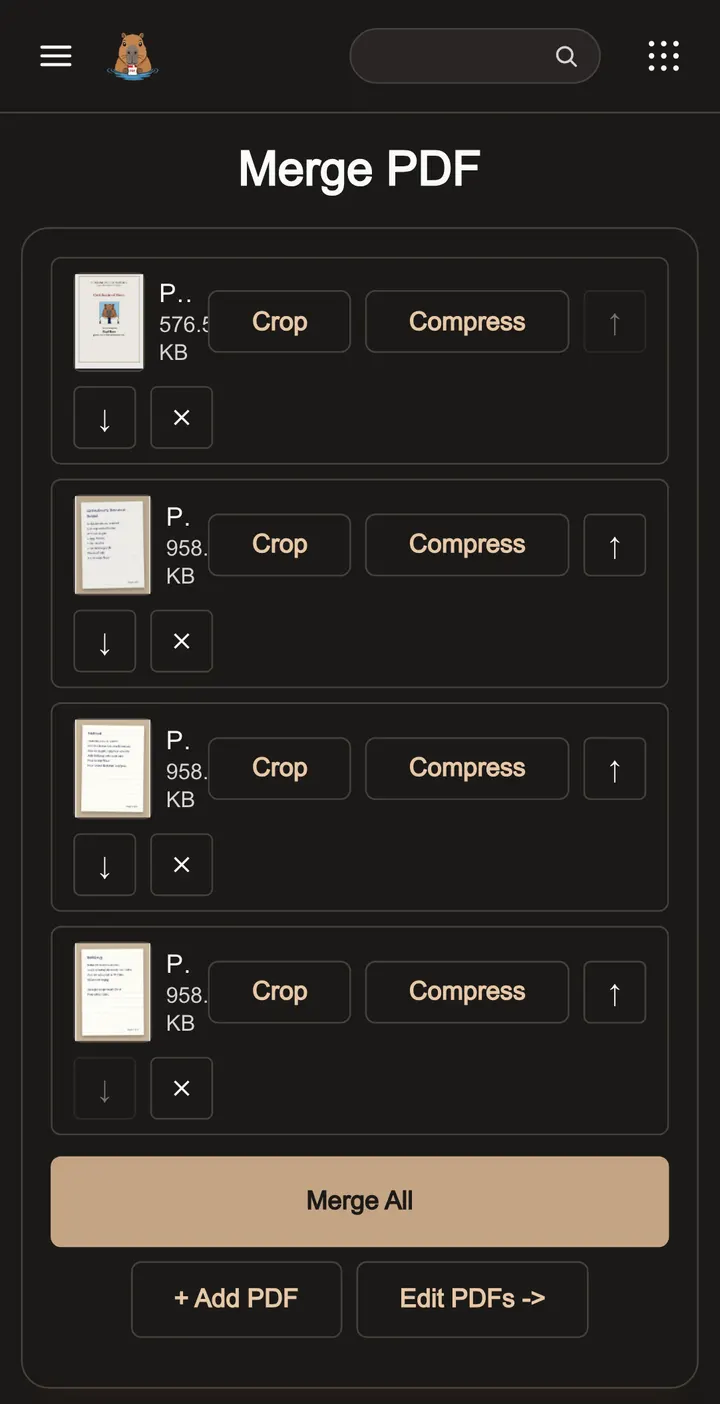
Step 2: Put the pages in order
Every page is listed with a preview, not just every file. Use the up and down arrows to move a page and × to remove one.
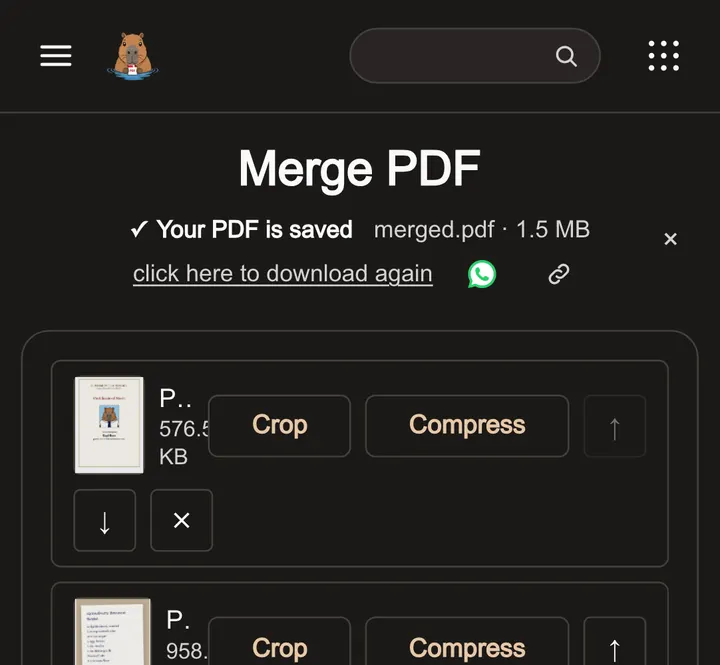
Step 3: Merge and save
Tap Merge All. The joined file saves to your device as merged.pdf. Here a one-page certificate and a three-page recipe became one four-page PDF.
Plan the order first
Decide what the reader should see first, such as a cover letter, then the form, then supporting documents. Then use the arrows in step 2 to move each page into place, and check the list from top to bottom before you tap Merge All.
If the merged PDF is too big
Each page keeps its original quality, so merging large scans can make a big file. Open the result in Compress PDF and pick a size target. If you only need some of the pages, remove the rest in step 2 before you merge, or use Split PDF afterwards.
Locked or photo files
- A password-protected PDF: unlock it first, then merge the unlocked copy.
- Photos: turn them into a PDF with Photos to PDF, then merge that PDF with the others.
- Pages that need edits: after merging, open the file in the PDF editor to fill fields or rotate pages.
Questions
Can I reorder or remove pages?
Yes. After the PDFs open, each page has its own row. Move it up or down, or remove it, before you merge.
Can I merge password-protected PDFs?
Not directly. Unlock the PDF first, then merge the unlocked copy.
Can I merge photos with PDFs?
Turn the photos into a PDF with Photo to PDF first, then merge that PDF with the others.
Are my files uploaded?
No. Merging runs in your browser and the PDFs stay on your device.
Are bookmarks and links kept?
Page content is kept. Some bookmarks and internal links may not carry over to the merged file.
See the processing overview for how files stay in your browser.
Related guides
How to Compress a PDF on Your Phone or Computer
Shrink a large PDF so it fits email and upload limits, right in your phone or computer browser. Watch the short video, then follow three illustrated steps.
Edit a PDF in the browser
An illustrated guide to PDF pages, text, forms, backgrounds, local commands, and safe exports. Learn which edits preserve PDF features and which permanently rasterize a copy.