How to Save a Webpage as PDF on Any Device
Save any webpage as a PDF from Chrome, Edge, Firefox or Safari on a computer, Android phone or iPhone, with no app to install and nothing uploaded.
You can save a webpage as a PDF with the browser you already have. Every major browser has a built-in Save as PDF option in its print screen, and it keeps the text selectable. When you need one long page with no page breaks, or a set screen width, save the page as an HTML file and convert it with HTML to PDF.
Save a webpage as PDF on a computer
- Open the page and press Ctrl + P (Windows or Linux) or Cmd + P (Mac).
- Set the printer to Save as PDF. In Firefox it is called Save to PDF. Avoid Microsoft Print to PDF if you want a smaller file.
- Open More settings to turn off Headers and footers (the date and web address on every page) and to turn on Background graphics if colours are missing.
- Press Save and choose a folder.
In Safari on a Mac, choose File then Export as PDF instead.
Save a webpage as PDF on an Android phone
- In Chrome, open the page and tap the ⋮ menu.
- Tap Share, then Print.
- At the top, pick Save as PDF as the printer.
- Tap the round PDF button and choose where to save it.
Save a webpage as PDF on an iPhone or iPad
- In Safari, open the page and tap the Share button.
- Tap Options under the page title, choose PDF, then tap Done.
- Tap Save to Files and pick a folder.
One long page with HTML to PDF
The print screen splits a page into A4 or Letter sheets, which can cut tables and pictures in half. HTML to PDF can save the whole page as one long PDF page instead.
- In your browser, press Ctrl + S (or Cmd + S) and save the page as Webpage, HTML Only.
- Open HTML to PDF and choose the saved .html file.
- Pick a Screen size, then a Page size or One long page, and press Convert to PDF.
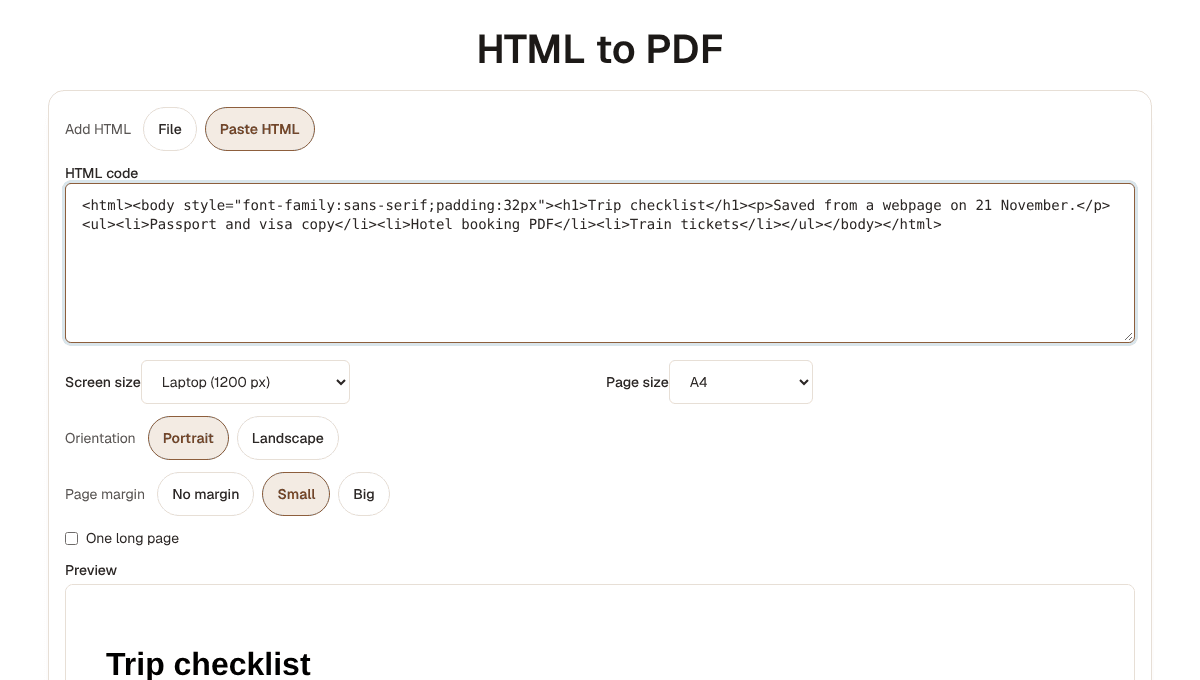
The page is drawn with scripts switched off, so content a script adds after loading, such as a chart, does not appear. Pictures linked with a full web address are kept. Each PDF page is a picture of the webpage, so run it through OCR PDF if you need text you can search and copy. For pages that rely on scripts, use the browser's print screen above.
If the PDF is too big
Pages with many photos can make a large PDF. Open it in Compress PDF and pick a size, such as 200 KB or 1 MB, for email or an upload form. To keep only some pages, use Remove pages or Split PDF.
See the processing overview for how files stay in your browser.