
Image editing tools
Resize a photo for a form, crop a picture for Instagram, add text to it or turn an iPhone HEIC into JPG. These image tools open in your browser, work on the photo where it already is, and save the result straight back to your device.
- Runs in your browser
- Free, no account to download
- Works on phone and computer
All 88 image tools, grouped by task
Edit, compress and create
Crop, resize, rotate, blur or sharpen, add text, a border or a watermark, shrink a picture to an exact size in KB, and make GIFs, memes and collages.
- Compress imageMake a JPG, PNG, WebP or GIF smaller, or aim for a size in KB.
- Compress GIFMake an animated GIF small enough to send or post.
- Motion photo to videoTake the hidden video clip out of a Samsung or Pixel motion photo.
- Compress image to 10 KBShrink a signature or thumb impression to under 10 KB.
- Compress image to 20 KBResize a signature or small photo to under 20 KB for an upload form.
- Compress image to 30 KBShrink a photo or signature to under 30 KB for an upload form.
- Compress image to 50 KBShrink a passport photo to under 50 KB for an upload form.
- Compress image to 100 KBShrink a photo or ID scan to under 100 KB for an upload form.
- Compress image to 200 KBShrink a photo or scanned document to under 200 KB.
- Image to SVGTrace a PNG or JPG into an SVG of clean shapes that stays sharp at any size.
- HTML to imagePaste HTML and CSS and save how it looks as a PNG or JPG.
- GIF makerTurn a set of pictures into an animated GIF, one picture per frame.
- Merge imagesJoin two or more pictures into a single JPG, side by side or one below the other, with nothing cut off.
- Collage makerCombine up to 12 photos into one picture, as a grid, side by side or stacked.
- Join photo and signaturePut your photo and your signature in one JPG, signature below the photo, with a KB limit for form uploads.
- Watermark imageWrite your name or a note across a photo, repeated or in one corner.
- Add text to imageWrite a name, a date or a caption on a photo.
- Meme generatorPut bold top and bottom text on your own picture.
- Add border to imagePut a white, black or coloured border around a photo.
- Round profile photoCut a photo to a circle with see-through corners.
- Blur face or imageDrag over a face, a number plate or anything else you want hidden, then save.
- Pixelate imageDrag over the part of a photo or screenshot you want to censor, then save.
- Image color pickerTap any point on a picture to read its colour as HEX, RGB and HSL.
- Sharpen imageMake the edges of a soft photo or scan crisper in one tap.
- Resize imageSet an exact size in pixels, centimetres, millimetres, inches or percent, with an optional KB limit.
- Crop imageDrag the frame or pick a shape, then save the cropped copy.
- Crop image to 9:16The crop opens with a tall 9:16 frame in the middle of your picture.
- Rotate imageTurn a sideways photo a quarter turn left or right, or turn it upside down.
- Flip imageMirror a picture left to right or flip it top to bottom.


Convert photos to JPG and PNG
Turn iPhone HEIC photos and any other picture into JPG, PNG or WebP, one at a time or a whole folder in a batch.
- Convert imageTurn a picture into JPG, PNG, WebP, AVIF or GIF.
- HEIC to JPGTurn an iPhone HEIC photo into a JPG that email, Windows, and older apps can open.
- HEIC to PNGTurn an iPhone HEIC photo into a PNG when you want a lossless picture.
- Image to JPGSave a picture as a JPG so it is easy to share.
- Image to PNGSave a picture as a PNG when you need a lossless image.
- Image to WebPSave a picture as WebP when you want a smaller file for a web page.
- Batch HEIC to JPGTurn up to 50 iPhone HEIC photos into JPG in one go.
- Batch PNG to JPGTurn up to 50 PNG pictures into smaller JPGs in one go.


Web and modern image formats
Move between WebP, AVIF, JPEG XL, JFIF, SVG, PNG and JPG, for websites, older apps or simply a smaller file.
- WebP to JPGTurn a WebP picture into a JPG that any app or website will take.
- WebP to PNGTurn a WebP picture into a lossless PNG.
- AVIF to JPGTurn an AVIF picture saved from a website into a JPG that any app or upload form will take.
- AVIF to PNGTurn an AVIF picture into a lossless PNG for editing or a document.
- JPG to AVIFSave a JPG as AVIF to make it much smaller for a website.
- PNG to AVIFSave a PNG as AVIF to cut its size for a website while keeping it sharp.
- JXL to JPGTurn a JXL (JPEG XL) picture into a JPG that any app or browser can open.
- JXL to PNGTurn a JXL picture into a PNG when you want transparency or a lossless image.
- JPG to JXLSave a JPG as JPEG XL (JXL) to make photos smaller.
- PNG to JXLSave a PNG as JPEG XL to shrink screenshots and graphics.
- JXL to WebPTurn a JXL picture into WebP for the web while keeping quality.
- WebP to JXLTurn a WebP picture into JPEG XL.
- JXL to AVIFTurn a JXL picture into AVIF.
- HEIC to JXLTurn an iPhone HEIC photo into JPEG XL.
- PNG to JPGTurn a PNG into a smaller JPG that is easy to email or upload.
- JPG to PNGTurn a JPG into a lossless PNG for editing or a web page.
- JFIF to PNGTurn a JFIF photo saved from the web into a PNG any app will open.
- JFIF to JPGSave a JFIF picture from the web as a .jpg that upload forms and apps accept.
- JPEG to JPGSave a .jpeg photo as a .jpg for a form that only lists JPG.
- SVG to PNGTurn an SVG drawing into a PNG picture you can paste anywhere.
- SVG to JPGTurn an SVG drawing into a JPG that any app or website will take.


Photos for forms and IDs
Passport, visa and exam photos, signatures and documents at the exact pixel and KB sizes application sites ask for.
- Indian e-Visa photoCrop your face photo to the square shape the Indian e-Visa form asks for, and save a JPEG between 10 KB and 1 MB.
- PAN card photoCrop your photo to the 3.5 cm wide, 4.5 cm tall size printed PAN forms ask for, then lay out copies on a sheet to print at home or at a photo shop.
- Stamp size photoCrop a photo to 2 cm wide and 2.5 cm tall, the size usually meant by stamp size in India, then fill a sheet with copies to print at home or at a studio.
- Passport photo makerCrop a photo to 35 × 45 mm, PAN card 3.5 × 4.5 cm or US 2 × 2 inches, then print copies on a 4 × 6 inch or A4 sheet at 300 DPI.
- Photo size checkerDrop a photo, signature or cover to see its pixels, centimetres, millimetres, KB, format and transparency, then pick a portal rule for a pass or fail on each line.
- SSC signatureTurn a phone photo or scan of your signature into the JPEG the SSC application asks for: roughly 6.0 cm wide, 2.0 cm high, between 10 KB and 20 KB.
- IBPS photoCrop a passport-style photo to the 200 × 230 pixel shape IBPS prefers, and save a JPEG between 20 KB and 50 KB.
- IBPS signatureFit your scanned signature into the small 140 × 60 pixel strip IBPS prefers, as a JPEG between 10 KB and 20 KB, without sending it anywhere.
- IBPS thumb impressionScan or photograph your inked left thumb, crop it square, and save the 240 × 240 pixel JPEG of 20 KB to 50 KB that the IBPS form takes.
- IBPS declarationCrop a photo of your handwritten declaration to the wide 800 × 400 pixel shape IBPS asks for and save it as a JPEG between 50 KB and 100 KB.
- UPSC photoCrop your photo so your face fills most of the frame, then save the colour JPG named photo that UPSC online forms ask for, between 20 KB and 200 KB.
- UPSC signatureScan the three signatures UPSC asks for, written one below the other, and save the sheet as signature.jpg between 20 KB and 100 KB and 350 to 500 pixels.
- RRB signatureGet your running-hand signature into the JPG railway recruitment forms take: at least 140 × 60 pixels, 100 DPI, and a file size from 30 KB to 49 KB.
- IIT JAM photoCrop a clear colour photo to the 3:4 shape of JAM's pixel limits and save a JPEG from 240 × 320 up to 480 × 640 pixels, between 50 kB and 200 kB.
- IIT JAM signatureSign inside a 7 cm by 2 cm box, scan it, and save the wide JPEG the JAM form takes: 280 × 80 up to 560 × 160 pixels, 50 kB to 150 kB.
- Photo resizer in cm and KBType the width and height in centimetres, the DPI and the KB range your notice gives.
- Image to 300 DPIWrite 300 DPI into a JPG or PNG and, when you give a print size, save the pixels that size needs.
- Resize to exact pixelsType the width and height in pixels, drag a frame of that shape over the part you want, and save.
- Increase image size in KBRaise a JPG to the minimum KB an upload form asks for, without changing how it looks.
- US visa photoMake both versions a US visa application can ask for: a square digital JPEG for the online form and a 2 × 2 inch print file at 300 DPI for the interview.
- DS-160 photoCrop a photo to a square JPEG between 600 and 1200 pixels and under 240 KB for the DS-160 upload step.
- Diversity Visa photoPrepare the photo for a Diversity Visa lottery entry: exactly 600 × 600 pixels, JPEG, 240 KB or less.
- Passport renewal photo checkCheck a photo against the US online passport renewal rules before you start the application.


Sizes for stores, YouTube and publishers
App Store screenshots, YouTube banners and thumbnails, Merch by Amazon templates, and book and audiobook covers at the sizes each platform requires.
- App Store screenshot sizesDrop one screenshot and get each iPhone, iPad and Google Play size in the table.
- Remove alpha channelPick a PNG, tap white or black to put behind it, and download a 24-bit PNG with no transparency left.
- ACX audiobook coverTurn ebook or print cover art into a square audiobook cover that meets the ACX upload rules: at least 2400 × 2400 pixels, RGB, under 8 MB.
- YouTube banner sizeMake a channel banner at the size YouTube recommends: 2560 × 1440 pixels, 16:9, under 6 MB.
- YouTube thumbnail sizeCrop a still, a photo or a design to the 16:9 shape YouTube uses for video thumbnails.
- Merch by Amazon templatePick a Merch on Demand product and fit your design onto its exact pixel canvas as a transparent PNG, checked against the 25 MB limit.
- KDP cover calculatorEnter the page count, paper type and trim size to get the spine width, the full cover size with bleed and a 300 DPI template PNG to design on.


See the image tools at work
iPhone HEIC to JPG
Watch an iPhone photo in HEIC format turn into a JPG that opens on Windows, Android and any upload form.
Open HEIC to JPG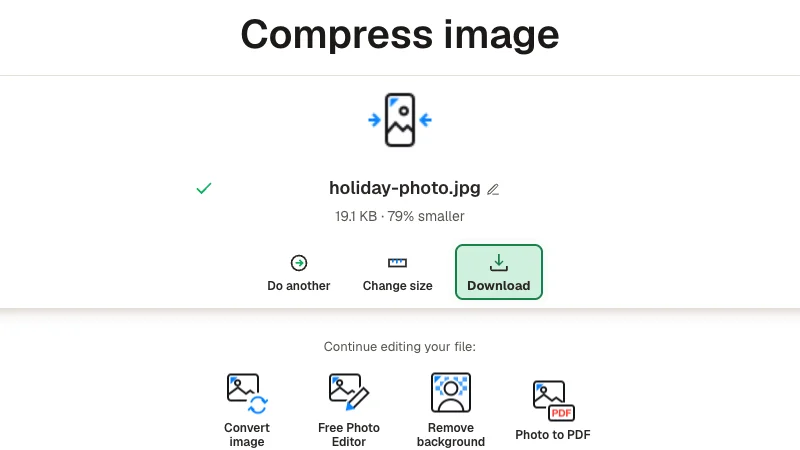
A photo 79% smaller
Compress image saved this picture at 19.1 KB, 79% smaller, as soon as it was opened. Change size picks a target in KB instead.
Open Compress image
How the image tools work
Open a photo
Pick a JPG, PNG, WebP or HEIC from your gallery or your files. Nothing is copied off your device.
Adjust it
Drag the crop box, type a width in pixels, choose a size in KB or pick a format. The preview updates as you change it.
Download the result
Save the new image, or carry it into the next tool, such as Compress image after a crop, without picking it again.
What people use the image tools for
Government and exam forms
Application sites ask for a photo and a signature at exact pixel sizes and file sizes. The form-photo tools set both in one go, so the upload is accepted the first time.
Social media posts
Crop to 1:1, 4:5 or 9:16, add text or a border, and save at a size that uploads quickly on mobile data.
Sellers, creators and app makers
Make App Store screenshots, YouTube thumbnails and KDP covers at the exact sizes each platform requires, or batch-convert a folder of PNGs to JPG.
Opening photos from other devices
iPhone photos arrive as HEIC and many websites save WebP. Convert them to JPG so any app, printer or upload form can open them.
Questions people ask
Will my photos lose quality?
Cropping, rotating and changing format to PNG keep every pixel. Compressing or saving as JPG trades some detail for a smaller file; the size is shown before you download, so you can pick a gentler setting.
Are my images uploaded anywhere?
No. The image tools work inside your browser, so personal photos, ID scans and signatures stay on your device.
How do I make a photo smaller than 50 KB?
Use one of the Compress image to KB tools, such as 50 KB or 20 KB. They lower the quality and, if needed, the pixel size until the file fits.
Can I convert HEIC photos from my iPhone?
Yes. HEIC to JPG and HEIC to PNG convert iPhone photos in the browser, including on Windows and Android, which often cannot open HEIC.
Can I convert many images at once?
Yes. Batch HEIC to JPG and batch PNG to JPG take a whole set of photos and convert them in one pass.
Which image formats are supported?
JPG, PNG, WebP, HEIC, AVIF, JPEG XL, JFIF, GIF and SVG, with a converter page for each common pair.