
Top 7 tools to split and merge PDFs, compared
Adobe Acrobat, PDFsam, PDF24, iLovePDF, Smallpdf, Sejda and Mac Preview compared by how you work, plus a free splitter and merger that never uploads your file.
Published November 27, 2026 · 10 min read
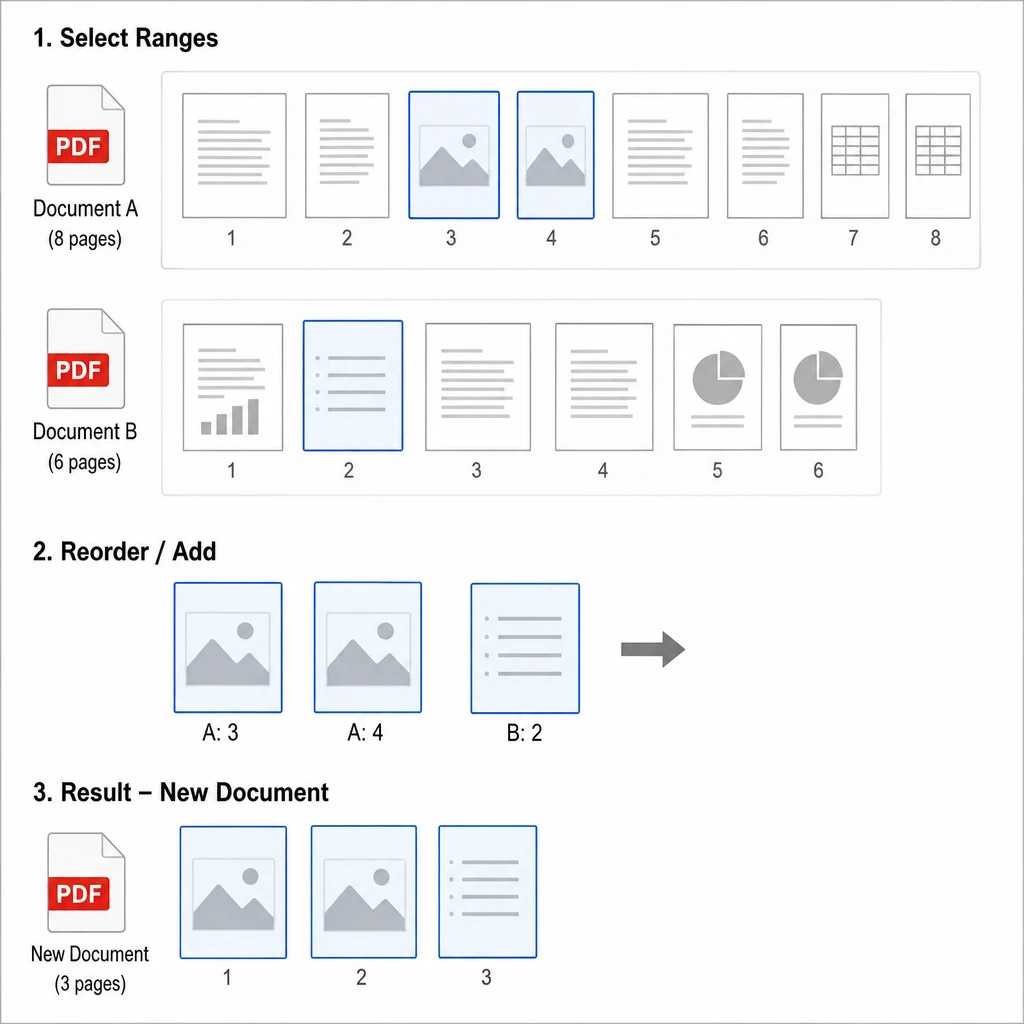
PDF split and merge tools turn scattered documents into one organized file, or pull out only the pages you need. The diagram above shows the whole job: pick pages from two PDFs, put them in order, and save a new document. This guide compares seven tools that do it, from browser services to offline desktop apps and the Preview app on a Mac, so you can choose one without paying for features you will rarely use. It also covers our own free Split PDF and Merge PDF, which run in your browser without uploading the file. Tools are picked by the workflow they suit, not by a lab test, and free limits change often, so check each tool's site before a big job.
Which PDF split and merge tool should you choose?
Choose by where your files are processed, how often you work with PDFs, and whether you need simple page picking or more automatic splitting.
- Files must stay on your computer? Use PDFsam Basic on Windows, macOS or Linux, PDF24 Creator on Windows, or a browser tool that does not upload, such as Free-Utils.
- Already pay for Adobe? Acrobat's online tools fit that workflow.
- Files live in Google Drive or Dropbox? iLovePDF can pick them up directly.
- You find files by looking at them? Smallpdf shows thumbnails.
- Need to split by bookmarks, size or text? Sejda has a separate tool for each.
- On a Mac and the job is small? Preview is already installed.
- Want a free browser tool that does not upload anything? Use Free-Utils Split PDF and Merge PDF.
| Your main need | Tool to try first | Why it fits |
|---|---|---|
| An Adobe-centered workflow | Adobe Acrobat online | Divider lines mark the split points |
| Offline, on any desktop | PDFsam Basic | Free, open source, runs locally |
| Free tools plus a Windows app | PDF24 | Browser tools and an offline desktop app |
| Files in cloud storage | iLovePDF | Adds files from Google Drive or Dropbox |
| Picking files visually | Smallpdf | Thumbnail previews, daily limit |
| Many ways to split | Sejda | Split by bookmarks, size or text |
| Small jobs on a Mac | Apple Preview | Built in, drag thumbnails between files |
| Private, in any browser | Free-Utils | Splits and merges with no upload |
The seven tools compared
1. Adobe Acrobat: for an Adobe-centered workflow
Adobe Acrobat has online tools to merge PDF files and to divide a document into smaller PDFs. Its splitter uses divider lines to mark page ranges, which suits breaking a report into sections rather than saving every page separately. Adobe's online splitting steps include signing in after you upload the document. (adobe.com)
Consider it for assembling a proposal from separate PDFs, or for cutting a presentation into sections for different audiences. Neither tool needs an installation. The online splitter makes at most 20 files, so it suits a handful of chapters rather than hundreds of single pages. The merge tool is free with no subscription, but you sign in to save or share results, so check each tool's page before you assume every Acrobat feature is free. (adobe.com)
Verdict: a natural pick if you already work in Adobe, less so for one-file-per-page jobs.
2. PDFsam Basic: for offline, cross-platform processing
PDFsam Basic is a free, open-source desktop app for Windows, macOS and Linux. It processes documents on your computer without uploading them, and it can merge, split, rotate, extract pages and mix pages from two files alternately. Its documentation says the Basic edition adds no watermarks and has no file-size limits. (pdfsam.org)
Its splitting options are the strongest part: split at chosen page numbers, after every set number of pages, by bookmark level, or into parts of roughly a given file size. Bookmark splitting, for example, can turn a bookmarked manual into one file per chapter without picking each chapter by hand. If you split PDFs regularly, this free PDF splitter is a sensible place to start. The trade-off is that you have to install it; it is not a browser service. (pdfsam.org)
Verdict: the best free choice when files must stay on your machine and you split often.
3. PDF24: for free browser tools and Windows desktop work
PDF24 offers online merge and split tools alongside PDF24 Creator, its free desktop software for Windows (there is no Mac or Linux version). Creator works offline and keeps files on your PC, while the browser tools cover your other devices. Both can organize PDF pages, so Windows users can switch to local processing without learning a different product. (tools.pdf24.org)
PDF24 helps when the job is more than joining whole documents. Its assembly tool lets you move pages between documents, delete unwanted pages, and save separate outputs, which suits making several handouts from overlapping source material. Check which version you open: the PDF24 website and the Creator app do not process files in the same place. Choose the desktop app when files must stay on your computer. (tools.pdf24.org)
Verdict: a good all-rounder for Windows users who want both a website and an offline app.
4. iLovePDF: for assembling files from cloud storage
iLovePDF lets you combine PDFs from your device, Google Drive or Dropbox, and arrange the files before merging. Its splitter handles custom, fixed or smart ranges and can extract every page, with an option to combine the selected ranges into one file. That last option matters when you want one short excerpt rather than several separate documents. (ilovepdf.com)
For example, you could select the relevant sections of a long information pack and then merge the result with a separate cover sheet. Before a large batch, check the account limits: iLovePDF's free and paid plans differ in files per task, file size and processing allowance. Free merging takes up to 25 files and 100 MB per task, which works for occasional jobs, but confirm your whole batch fits before you upload everything. (ilovepdf.com)
Verdict: handy when your files already sit in Google Drive or Dropbox.
5. Smallpdf: for picking files visually
Smallpdf merges and splits PDFs in the browser. Its merge tool shows thumbnails of your files, and its splitter extracts selected pages or breaks a large PDF into separate files. The splitter needs no installation or account, so it suits an occasional job on a device where you do not want to install software. (smallpdf.com)
Consider it when spotting files by eye is easier than writing down page ranges. Note what the free plan covers: you can reorder whole files before merging, but showing and rearranging single pages inside Merge is a paid feature. Its pricing page also lists a daily download limit for free merging and splitting, without saying how many, so check it before a session with many revisions and downloads. (smallpdf.com)
Verdict: an easy option for a one-off job, within its free daily limits.
6. Sejda: for the widest range of split methods
Sejda pairs a merge tool with several separate splitting tools. Besides page ranges, you can split by bookmarks, by file size, or where the text changes. That gives you more ways to separate a PDF when page counts alone do not match how the material is organized. A bookmarked set of chapters calls for a different method than a file that has to fit an upload limit. (sejda.com)
The caveat is that free limits differ by tool. Free merging covers documents up to 50 pages or 50 MB, while free splitting allows up to 200 pages, both with 3 tasks an hour. Do not assume an allowance from one Sejda tool applies to another. It is worth trying for occasional, targeted jobs; check the exact limits before you plan a larger workflow around it. (sejda.com)
Verdict: pick Sejda when the way you need to split is unusual.
7. Apple Preview: for simple page work on a Mac
Preview lets Mac users merge whole PDFs or move selected pages between documents using the thumbnail sidebar. To extract pages, select their thumbnails and drag them to the desktop to create a new PDF. That makes it practical for assembling a small document pack or saving a few pages without opening an online service. (support.apple.com)
Start by choosing View > Thumbnails, then drag the pages into the order you want. Apple warns that Preview saves changes automatically, so choose File > Duplicate before combining documents if you want to keep the originals. For splitting into many repeatable ranges, a dedicated splitter is faster than selecting each group by hand. (support.apple.com)
Verdict: already on every Mac and fine for a few pages; slow for big splits.
A free option that splits and merges without uploading
Most online PDF tools upload your document to their servers, and desktop apps need installing. Free-Utils Split PDF and Merge PDF sit in between: they open in any browser, on a phone or a computer, but the work happens on your device, so the file is never uploaded.
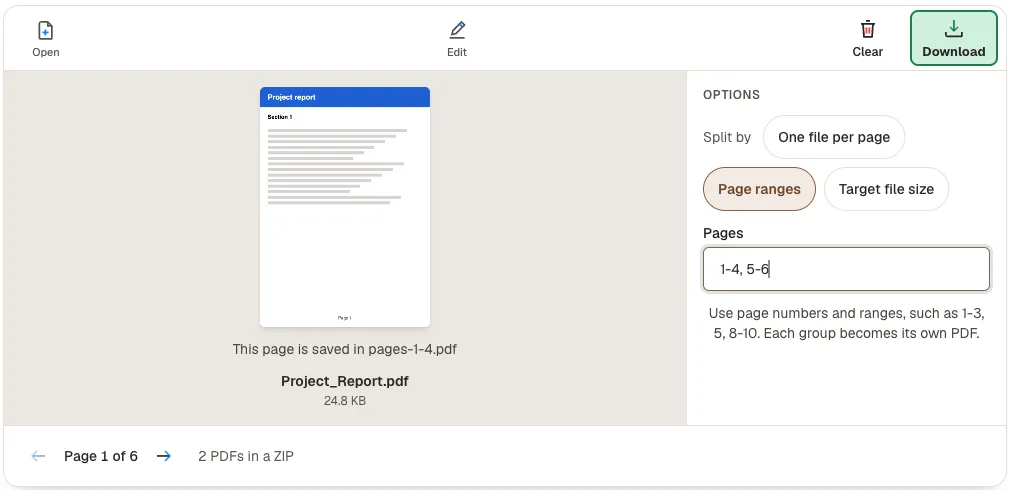 Typing 1-4, 5-6 splits a 6-page report into two PDFs, saved together in a ZIP.
Split PDF has three modes:
- One file per page: every page becomes its own PDF.
- Page ranges: type groups such as 1-3, 5, 8-10, and each group becomes its own PDF.
- Target file size: cuts the document into parts that each stay under a size you choose, for upload limits. A single page larger than the limit cannot be split further.
One result saves as a PDF; several are packed into a ZIP. Pages are copied without being recompressed, so quality does not change. It handles PDFs up to 150 MB on a computer or 100 MB on a phone.
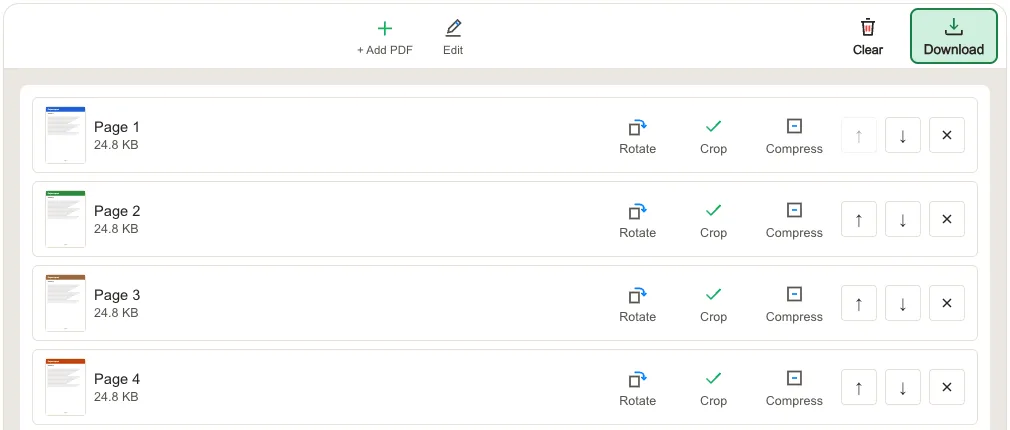 Merge PDF lists every page of every file, so you can move, rotate or remove single pages before you merge.
Merge PDF takes several PDFs from your device, Google Drive or Dropbox and lists every page with a thumbnail. Move pages up or down, rotate, crop or compress them, remove the ones you do not want, then press Download to save them as one PDF. That is the workflow in the diagram at the top: pages from two documents, in your order, in one new file. The merge PDF guide walks through each screen.
For jobs in between, Extract pages saves the pages you pick as one new PDF or as separate files, and Organize PDF reorders, rotates and removes pages in a single file.
When should you split a PDF online instead of using desktop software?
Use an online PDF merge or split service when browser access is convenient and uploading the document is acceptable. Choose local processing when files must stay on your computer: PDFsam Basic and PDF24 Creator offer that, and so do browser tools that process files on your device. Automatic deletion from a server is not the same as never uploading the file.
Before you choose, run through these checks:
- Upload permission: confirm you may send the document to an outside service, especially for workplace files.
- Task limits: check file size, page count, file count and download allowances, not just whether the tool says "free".
- Output structure: decide whether you need one excerpt, several ranges, or every page as its own file.
- Processing location: check whether you opened a website or a local app; a shared brand name does not mean they process files the same way. (tools.pdf24.org)
A practical workflow for cleaner results
Plan the output before you open any tool. Write down which pages belong together and give each file a meaningful name, such as project-summary.pdf and project-appendix.pdf, rather than several downloads you cannot tell apart.
- Keep the originals. Work from copies, especially in apps that save changes automatically.
- Map the ranges. Note the start and end page of each part before you split the PDF.
- Arrange on purpose. Put the cover, main document and supporting material in reading order before you merge.
- Inspect the output. Open every resulting file and check its first page, last page, orientation and that nothing is missing.
- Name and store it. Save the checked version somewhere you will find it before you share it.
If a result is wrong, go back to the originals rather than re-editing a file you are unsure about. If a merged file is too big to send, run it through Compress PDF.
Choose for the task, not the longest feature list
Start with where your files may be processed, then match the splitting method and usage limits to the job. Try a non-sensitive sample first. A tool earns its place when it produces the right files every time, not when it offers the most buttons.
Try it free: Split a PDF or merge PDF files. Both run in your browser, so your file never leaves your device.
How would you rate this content?